1. Introduction
Every pixel on a webpage has a cost. It costs bandwidth to transmit, storage to host, and processing time for the browser to decode and render on screen. In modern web development, images make up over 50% of the average webpage's total byte payload. Consequently, picking the wrong image file format directly leads to slow load times, poor user engagement, and lower search rankings.
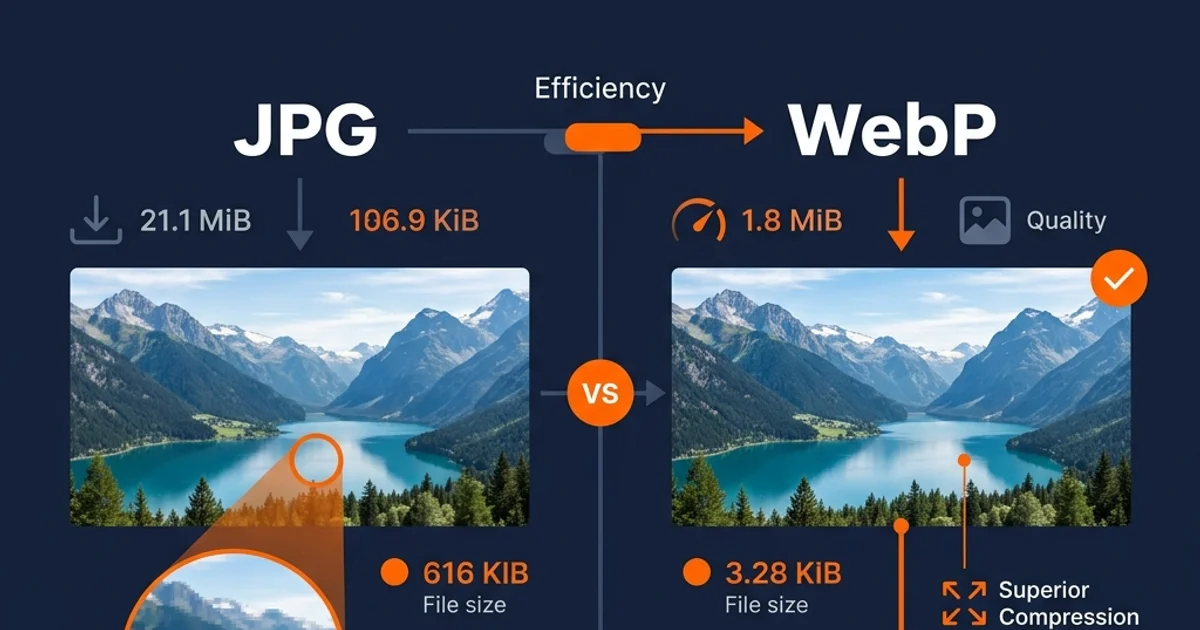
For decades, the Joint Photographic Experts Group format (JPG) was the undisputed standard for digital photography and web images. However, in 2010, Google introduced a modern alternative called WebP, designed specifically to address the performance limitations of legacy web formats. Today, web developers face a critical choice: stick with the reliable, universally compatible JPG, or migrate to the lighter, feature-rich WebP.
This guide provides an in-depth comparison of JPG and WebP formats. We'll analyze their algorithms, compression performance, loading speeds, SEO impact, browser compatibility, and demonstrate how you can optimize your graphics securely on your local device.
2. What is JPG?
JPG (or JPEG) stands for Joint Photographic Experts Group, the committee that created the standard in 1992. It is a lossy raster image format that represents graphics using a fixed grid of colored pixels. JPG is built to display photographs containing smooth transitions of colors and complex light gradients.
How JPG Compression Works
JPG relies on the limits of human vision to compress data. The compression algorithm works in three core steps:
- Color Space Conversion: The image is converted from RGB (Red, Green, Blue) to YCbCr (Y = Brightness/Luma, Cb/Cr = Chroma/Color channels). Since the human eye is far more sensitive to changes in brightness than color, the color channels are downsampled (chroma subsampling), discarding large amounts of color details while keeping brightness sharp.
- Discrete Cosine Transform (DCT): The image is divided into small 8x8 blocks. The algorithm applies DCT to transform pixel arrays into frequency spaces. High-frequency variations (fine details that humans struggle to notice) are isolated.
- Quantization: The isolated high-frequency components are discarded based on a user-selected quality scale. This is the lossy step; higher compression rates discard more pixel data, producing blocky distortions called compression artifacts.
Advantages of JPG
- Universal Compatibility: Every operating system, web browser, image editor, mobile application, and email client made in the last 30 years can read and write JPG files.
- Excellent for Print: JPG supports CMYK color spaces and embeds high-density pixel metadata, making it a standard choice for professional physical printing.
- Rich Photography Rendering: Preserves complex lighting, shadow gradients, and high contrast details well at high quality settings.
Disadvantages of JPG
- No Transparency Support: JPG does not support alpha channels. Transparent backgrounds are filled with a solid color, usually white or black.
- No Animation Support: JPGs cannot contain animated frames.
- Artifact Degradation: Repeatedly editing and saving a JPG degrades quality (generational loss) as lossy algorithms compress already compressed data.
3. What is WebP?
WebP is a modern web graphic format developed by Google and released in 2010. It was designed to create smaller, richer images that make the web faster. It combines features from PNG, JPG, and GIF, offering a unified solution for modern web publishing.
How WebP Compression Works
Unlike JPG's frequency quantization, WebP utilizes predictive coding based on the VP8 video compression codec. It predicts the pixel values of a block using the pixels of surrounding blocks that have already been decoded. The encoder only saves the mathematical difference (residual) between the predicted and actual pixel values. Encoding the residual requires significantly less data space than encoding the full pixel grid.
Additionally, WebP supports two distinct compression paths:
- Lossy WebP: Works similarly to predictive VP8 encoding, reducing details based on spatial correlations. It achieves 25% to 34% smaller file sizes than comparable JPG images.
- Lossless WebP: Uses advanced entropy coding, spatial transformations, and color indexing. It achieves 26% smaller file sizes than lossless PNG images while supporting 100% pixel-accurate replication and transparency.
Advantages of WebP
- Significant Compression Savings: Delivers high visual fidelity at a fraction of the file size.
- Transparency Support: Supports alpha transparency channels in both lossy and lossless modes, replacing heavy PNGs.
- Animation Support: Supports animated frames at much smaller file sizes than heavy legacy GIFs.
- Web Optimized: Designed specifically for modern web delivery, Core Web Vitals, and mobile bandwidth constraints.
Disadvantages of WebP
- Not for Print: Lacks support for CMYK color profiling, rendering it unsuitable for professional physical print.
- Legacy System Gaps: Very old operating systems, legacy software utilities, and old browsers (like Internet Explorer) cannot open WebP without plugins.
4. JPG vs WebP Comparison Table
To understand the structural differences between these formats, review this detailed comparison matrix:
| Feature | JPG Format | WebP Format |
|---|---|---|
| Primary Target | Digital photography, Print media | Web graphics, Mobile layout speed |
| Compression Type | Lossy only | Lossy and Lossless |
| Average File Size | Baseline size (100%) | 25% - 35% smaller than JPG |
| Transparency (Alpha Channel) | ❌ No | ✅ Yes (Lossy & Lossless) |
| Animation | ❌ No | ✅ Yes |
| Print Compatibility | ✅ Yes (Supports CMYK/Exif) | ❌ No (RGB only) |
| Browser Support | ✅ Universal (100%) | ✅ Modern browsers (97%+) |
| Core Web Vitals Impact | Moderate (Larger payload) | Excellent (Speeds up LCP/FCP) |
| Generational Loss | High (Degrades on resave) | Moderate (More resilient) |
5. Compression Comparison
The primary advantage of WebP is its advanced compression efficiency. Let's explore how lossy and lossless algorithms stack up under the hood.
Lossy Compression Battle
Under lossy compression, both formats discard pixel details. However, WebP's predictive block method handles smooth surfaces and sharp edges much better than JPG's DCT block quantization. When compressed heavily, JPG shows blocky, jagged shapes around high-contrast edges. WebP, on the other hand, shows a subtle blurring that is far less distracting to the human eye, maintaining a smoother, cleaner appearance even at low quality settings.
Lossless Compression Battle
While JPG does not support lossless modes (requiring users to rely on PNG), WebP provides an outstanding lossless compression mode. By using color cache mapping and spatial replication, a lossless WebP file is typically 26% smaller than a standard PNG file. This makes WebP the ultimate format for serving transparent website UI graphics, web illustrations, and text-heavy screenshots.
6. Website Performance & Core Web Vitals
Google's PageSpeed ranking algorithms rely on a set of performance indicators called **Core Web Vitals**. Two of these metrics are directly affected by your choice of image format:
- Largest Contentful Paint (LCP): Measures how long it takes for the largest visual element on the screen (usually a hero image or banner) to load. WebP's 30% file size reduction directly speeds up LCP score triggers.
- Cumulative Layout Shift (CLS): Measures visual stability. Heavy images that load late and lack dimension styling cause layout shifts. Using sized WebP images ensures fast loading, keeping layout states stable.
Consider a web page containing 10 high-quality JPG articles images, totaling 2.5 MB. By converting them to WebP, the total page payload drops to approximately 1.6 MB. This bandwidth saving improves loading speed, reduces bounce rates on slow mobile connections, and lowers data usage fees for hosts and users.
7. SEO Benefits
Search engine optimization is no longer just about text keywords and backlinks. Technical optimization, mobile speed, and user experience are key factors in Google's ranking systems. Serving modern, optimized WebP images provides clear SEO benefits:
- Mobile First Indexing: Google indexes websites based on their mobile performance. Since mobile connections are slower, WebP's file size savings directly translate to higher mobile rankings.
- Crawl Budget Efficiency: Smaller image payloads allow search engine crawlers to download, index, and cache your website content much faster, improving indexing coverage.
- Image Search Positioning: Optimized images with correct alt attributes rank higher in Google Image Search results, driving organic search traffic.
8. Browser Compatibility
Historically, developers hesitated to adopt WebP because browser support was limited. Today, that concern is obsolete. Every major modern browser natively supports WebP. Below is the current compatibility matrix:
| Browser / Platform | WebP Support Status | Version Introduced |
|---|---|---|
| Google Chrome (Desktop & Mobile) | ✅ Fully Supported | Chrome 9+ |
| Mozilla Firefox | ✅ Fully Supported | Firefox 65+ |
| Apple Safari (macOS & iOS) | ✅ Fully Supported | macOS Big Sur / iOS 14+ |
| Microsoft Edge | ✅ Fully Supported | Edge 18+ |
| Opera | ✅ Fully Supported | Opera 11.5+ |
| Android Browser | ✅ Fully Supported | Android 4.0+ |
| Internet Explorer | ❌ Not Supported | Legacy / Retired |
Fallback Strategies for Legacy Browsers
If you must support ancient browsers like Internet Explorer, you can use the HTML5 <picture> element to serve WebP with a JPG fallback:
<picture>
  <source srcset="image.webp" type="image/webp">
  <img src="image.jpg" alt="Optimized graphic content" loading="lazy">
</picture>
Modern browsers will download the WebP file, while legacy browsers will ignore the source tag and download the JPG fallback. This ensures everyone gets a working image.
9. Best Use Cases
Choosing the correct image format depends on where and how the graphic will be displayed. Review this use-case guideline:
| Image Category | Recommended Format | Rationale |
|---|---|---|
| Website Banner / Hero | WebP | Saves bandwidth, accelerates LCP scores, supports high resolution. |
| Blog Post Illustration | WebP | Minimizes article file size for faster page load times. |
| UI Icon / Vector Shape | SVG / PNG | Vectors scale infinitely; PNG is ideal for pixel-perfect small icons. |
| Digital Photography Archive | JPG / TIFF | Stores raw, high-contrast camera details and handles CMYK profiles. |
| Transparent Visual Asset | WebP (Lossless) | Saves 26% more space than heavy PNGs while preserving transparency. |
| Animated Banner | WebP | Replaces heavy animated GIFs with smoother, compressed frames. |
| Email Templates | JPG / PNG | Ensures full display compatibility across legacy email clients. |
10. Should You Convert JPG to WebP?
While WebP is superior for web delivery, converting your images requires careful consideration. Let's analyze the pros and cons.
The Pros
- Drastic File Size Reductions: Save 30% of your image hosting storage and bandwidth fees.
- Improved User Retention: Pages load faster, preventing bounce rates from slow-loading image blocks.
- Higher Search Rankings: Google rewards fast-loading pages in search engine results.
The Cons
- De-compression Pitfalls: Converting a highly compressed JPG directly to WebP can introduce artifacts. Always use high-quality originals as your source.
- Extra Step in Editing: Many offline desktop applications require plugins to edit WebPs directly.
11. Browser-Based Conversion Privacy
Many online image converters require you to upload your files to their external servers for processing. This presents significant security and privacy risks, especially when handling confidential designs, corporate screenshots, private photos, or copyrighted photography. Uploading these files exposes your assets to data leaks, storage retention risks, and copyright conflicts.
Browser-based local tools solve these privacy issues. Tools like GetLocalTools perform all conversion and compression tasks entirely in your browser's local sandbox using client-side JavaScript. This offers key advantages:
- 100% Privacy: Your images never leave your computer. There are no server uploads, no cloud storage, and no risk of data exposure.
- Offline Capability: Once the page is loaded, the tool can convert images fully offline, making it highly secure and useful in areas without internet access.
- Instant Processing: Because there are no network upload delays, conversion happens instantly in your computer's RAM, speeding up your workflow.
- No File Limits: Process large files without worrying about server limits, upload caps, or subscription fees.
Privacy-First Image Conversion
Need to convert JPG or WebP images securely without uploading them to cloud servers? Use our free browser tools:
- 100% Offline Processing
- Batch Upload ZIP Support
- Visual Comparison Slider
- Complete Browser Privacy
12. Step-by-Step Guide
Converting your images locally on GetLocalTools is simple and fast. Follow these steps:
- Navigate to the Converter: Open the PNG to WebP or WebP to PNG tool on the GetLocalTools dashboard.
- Select Your Image: Drag and drop your image file into the dashed upload box, or click inside the zone to browse and select files from your computer.
- Set Output Properties: Choose your target output format and adjust the compression quality slider (e.g., 85% to 90% quality is recommended for WebP).
- Process: Click the "Convert Image" button. The browser draws your image locally onto a canvas block and recompresses it in RAM.
- Download: Click the "Download Output" button to save your new, optimized image file to your device.
13. Common Mistakes to Avoid
To get the best results from your image optimization efforts, avoid these common pitfalls:
- Converting Already Compressed JPGs to WebP: Converting a low-quality JPG to WebP won't restore lost details; instead, it re-compresses the artifacts, degrading quality further. Always convert from high-resolution, lossless sources (like PNG or original designs).
- Ignoring Print Workflows: Never send WebP files to commercial print shops. WebP lacks CMYK color spaces, leading to distorted color output when printed on paper.
- Using WebP for Offline Document Editing: Standard desktop applications like Microsoft Word or legacy presentation builders may struggle to display WebP files. Stick to JPG for standard offline documents.
- Discarding Original Source Files: Resizing and converting are destructive operations. Always keep your raw master files in case you need to regenerate optimized assets later.
14. Frequently Asked Questions
For websites and mobile applications, yes. WebP provides 25% to 35% smaller file sizes than JPG at equivalent quality, supports transparent alpha channels, and animation. However, JPG is still better for physical printing and legacy software compatibility.
In lossy mode, WebP does discard color details to save file space, just like JPG. However, WebP's advanced predictive compression algorithm keeps edges and color gradients smoother, maintaining higher perceived quality at smaller file sizes.
Yes. Over 97% of active internet users use browsers that natively support WebP (Chrome, Safari, Firefox, Edge, Opera). Fallback picture strategies are only necessary for outdated legacy systems like Internet Explorer.
Yes, especially if those images are deployed on your website's landing pages, banners, or blog cards. Reducing image weights will improve your Core Web Vitals, page speed scores, and mobile search rankings.
Yes. Google uses page loading speed and mobile-friendliness as direct ranking signals. By serving lighter WebP images, you speed up load times and boost crawl efficiency, directly helping your SEO rankings.
No. WebP is built for screen display and only supports RGB color space. Professional printing setups require CMYK color spaces. Convert your images to high-resolution JPG or PDF before printing.
Yes. By using client-side tools like GetLocalTools, all image conversion and compression calculations are performed locally in your browser sandbox. Your files never touch external servers, ensuring 100% privacy.
For editing and raw storage, RAW, TIFF, or high-quality JPG are best because they preserve full sensor color ranges. When publishing photography to the web, convert the final edits to WebP to save bandwidth.
WebP uses predictive block coding derived from the VP8 video codec. It uses neighboring pixels to predict upcoming block values and only encodes the difference, which is far more efficient than JPG's compression methods.
Yes. If you need to edit WebP assets in older design software or share them with legacy devices, you can use the GetLocalTools WebP to PNG or WebP to JPG converter to safely restore the format locally in your browser.
Optimize Your Web Images Securely Now
Use our free, client-side tools to convert, compress, and resize your JPG and WebP images locally with no cloud uploads.