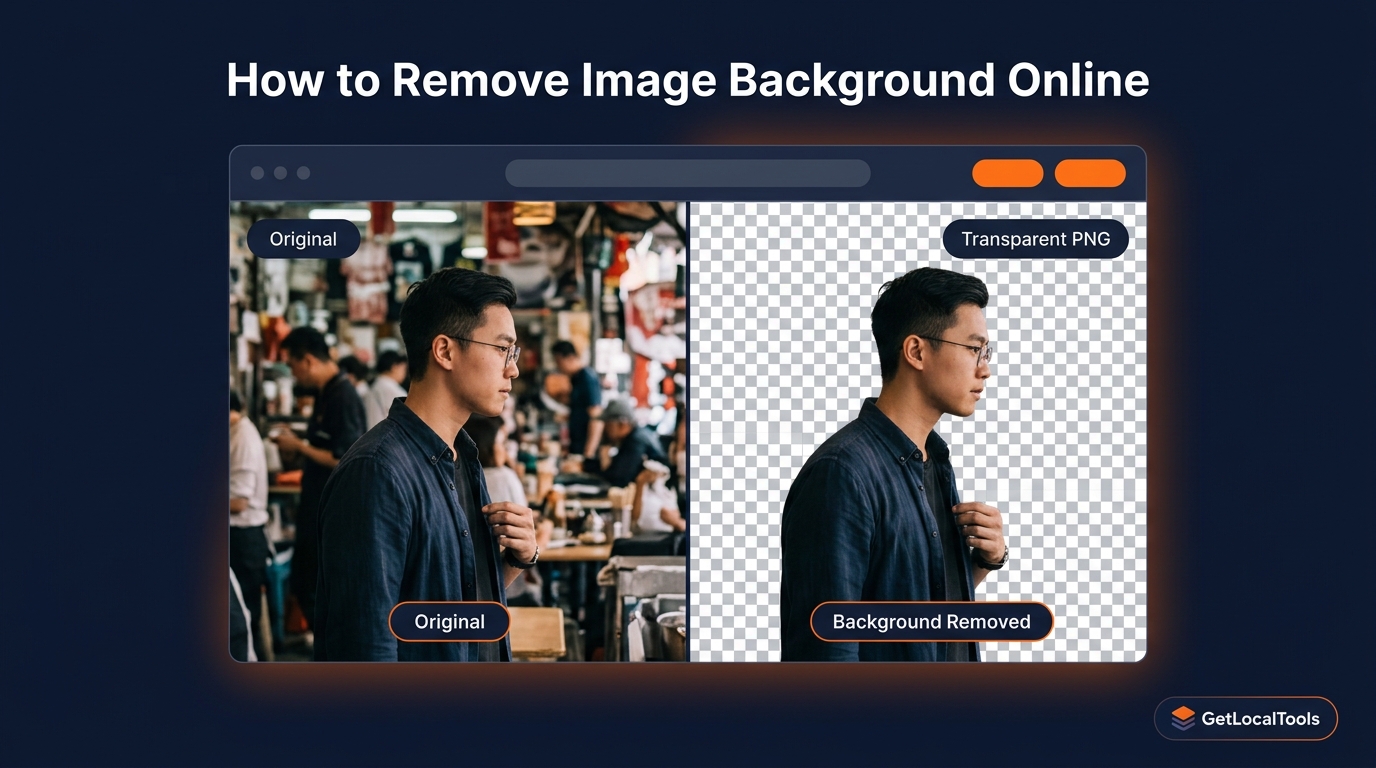
How to Remove Image Background Online (Free & Without Uploading to a Server)
Removing an image background is one of the most requested image editing tasks on the internet. Whether you are a product photographer preparing e-commerce listings, a marketer building presentation slides, a student creating a resume profile photo, or a developer building a design asset pipeline, background removal is a daily workflow problem that most people solve with far more complexity than the task actually requires.
The conventional answer has always been Photoshop — a powerful but expensive and notoriously complex tool. In recent years, AI-powered cloud services like Remove.bg and Canva's background remover have emerged as popular alternatives. These services work well, but they come with a significant trade-off that most users never consider: every image you upload is transmitted to an external server.
For personal photographs, product designs, company documents, or any image containing sensitive visual information, this upload model is a genuine privacy concern. A better approach exists — one that processes your images entirely inside your browser using the same computing power that renders the web page itself. This guide explains both approaches in full and shows you how to remove backgrounds for free without uploading anything.
What Is Image Background Removal?
Image background removal is the process of isolating the main subject of a photograph or graphic and deleting the surrounding background pixels, leaving those areas transparent. The result is a floating subject that can be placed on any new background — a white studio backdrop, a branded color, a different scene, or no background at all.
The key output format for background-removed images is PNG (Portable Network Graphics), which supports an alpha channel — a fourth data channel alongside Red, Green, and Blue that encodes per-pixel transparency. Each pixel's alpha value ranges from 0 (fully transparent) to 255 (fully opaque), allowing for smooth semi-transparent edges like fine hair, feathers, or glass objects.
JPEG files do not support transparency. If you save a background-removed image as a JPEG, the transparent areas will be filled with white or black, destroying the transparency effect. Always export background-removed images as PNG. For a detailed comparison of image formats, see our guide on JPG vs WebP — which image format should you choose.
What Does "Subject Isolation" Mean?
Subject isolation is the act of telling an algorithm (or a human editor) which pixels belong to the subject you want to keep and which belong to the background you want to remove. Historically this was done manually using selection tools. Modern AI systems do this automatically using deep learning models trained on millions of human-annotated images.
Common Use Cases for Background Removal
Background removal is not a niche skill. It appears across dozens of everyday workflows:
- E-commerce product photography: Retailers place products on clean white or transparent backgrounds to meet platform requirements (Amazon, Etsy, Shopify) and maintain visual consistency across catalogues.
- Passport and ID photos: Official documents often require a plain white or light-blue background. Background removal lets you reformat any photo to meet these specifications without a professional studio session.
- Marketing and advertising: Designers composite subjects onto branded backgrounds, lifestyle scene images, or gradient overlays for social media creatives, banner ads, and email headers.
- Logo refinement: Logos exported with unwanted white rectangles can be cleaned to produce transparent PNGs that display correctly on any background color.
- Resume and LinkedIn profile photos: A professional headshot with a clean or blurred background performs better in first impressions. Background removal is the first step.
- Presentations and slide decks: Isolated subjects can be layered over slide backgrounds in PowerPoint, Google Slides, or Keynote without visible bounding boxes.
- App and web UI design: Designers need isolated assets — icons, illustrations, product shots — that can be placed over any UI color without a white border artifact.
- Social media stickers and GIFs: Platforms like Instagram, WhatsApp, and Telegram support custom stickers. Background removal is the first step in creating them.
Different Ways to Remove an Image Background
Not all background removal methods are equal. Each approach offers a different trade-off between quality, speed, cost, and privacy.
1. Manual Editing in Photoshop or GIMP
The traditional approach uses selection tools — the Pen Tool, Magic Wand, Quick Selection, or Magnetic Lasso — to hand-trace the subject boundary. This produces the highest possible precision for complex edges but requires significant skill and time. A single product photograph may take 5–30 minutes to cut manually.
Pros: Maximum precision, full control over edge refinement, no upload, works offline.
Cons: Steep learning curve, time-intensive, requires licensed software (Photoshop costs $22+/month).
2. AI-Powered Cloud Services
Services like Remove.bg, Adobe Express, and Canva use machine learning models hosted on remote servers to detect and remove backgrounds automatically. You upload an image, the server processes it, and you download the result. These tools are fast and surprisingly accurate for standard portraits and product photography.
Pros: Fast, accurate, easy to use, no technical knowledge required.
Cons: Requires upload to an external server, free tiers limit resolution or number of exports, subscription costs for bulk use.
3. Browser-Based Client-Side Tools
Browser-based tools run background removal algorithms entirely within your browser using JavaScript and the HTML5 Canvas API — no upload required. The image data is loaded into your browser's memory, processed locally, and the result is offered as a download. Your image never leaves your device.
Pros: Free, private, no upload, works offline after loading, no account required.
Cons: May be less accurate than server-side AI for complex edges; depends on device computing power.
4. Desktop Software Background Removers
Tools like Luminar Neo and Affinity Photo include AI-powered subject masking. These are accurate and private (processing happens locally) but require purchase and installation.
Why Privacy Matters When Removing Backgrounds
When you upload a photograph to a cloud background remover, you are transmitting that image over the internet to a third-party server. That server processes your image using its AI pipeline, and your file is temporarily stored — sometimes longer — on their infrastructure. Most services have privacy policies that govern data retention, but those policies vary widely and change over time.
Consider what kinds of images people routinely submit to background removers:
- Personal identity photos: Passport photos, driver's licences, national ID cards — images that contain biometric data and document numbers.
- Medical and legal documents: Scanned photos attached to medical forms or legal filings.
- Company product images: Unreleased product prototypes photographed before a public launch.
- Children's photographs: Family images where privacy is especially sensitive.
A browser-based background remover that processes images locally eliminates the upload entirely — and with it, every associated server-side privacy risk.
GetLocalTools is built on this philosophy. Every image tool on the platform runs client-side in your browser. No file is ever transmitted to any server. Processing occurs entirely within your browser tab, and closing the tab clears all data from memory immediately. This approach is described in detail in our guide on what image metadata is and why it matters.
How to Remove an Image Background Using GetLocalTools
The GetLocalTools Image Background Remover is a free, browser-based tool that removes backgrounds without uploading your image to any server. Here is a step-by-step walkthrough:
-
Open the tool in your browser. Navigate to the GetLocalTools Image Background Remover. No account, login, or installation is required.
-
Upload your image. Click the upload area or drag and drop your image file. Supported formats: PNG, JPG, JPEG, WEBP, and GIF. The file is loaded into your browser's local memory only — it is never transmitted to a server.
-
Select background detection method. Choose between color-key removal (for solid-color backgrounds like white or green) or edge-detection mode (for more complex backgrounds). Adjust the tolerance slider to control how aggressively edge pixels are removed.
-
Preview the result. The tool renders a real-time preview showing your subject isolated against a checkered transparency grid — the universal indicator of a transparent background in image editors.
-
Refine if needed. Use the tolerance control to fine-tune edge accuracy. Increase tolerance to remove more background pixels; decrease it to preserve fine subject details.
-
Download your transparent PNG. Click the Download button to save the output as a transparent PNG file directly to your device. No watermarks. No file size limits. No account required.
Supported Input Formats
The GetLocalTools Image Background Remover accepts the most common web and photography image formats:
- JPG / JPEG: The standard format from digital cameras and smartphones.
- PNG: Lossless format already supporting transparency — useful for logos or existing layered assets.
- WEBP: Google's modern web format used by many sites and CMS platforms. For format conversion needs, see our JPG to PNG Converter.
- GIF: Older web format, useful for simple flat-color graphics.
The output is always a transparent PNG — the only widely supported web format that preserves the alpha channel. For more on how PNG compares to other formats, see our detailed article on SVG vs PNG — which image format to use.
Tips for Getting the Best Background Removal Results
Background removal quality depends heavily on the source image. These practices consistently produce cleaner results:
Use High-Contrast Lighting
When photographing a subject for background removal, use lighting that creates a clear tonal difference between the subject and the background. A well-lit subject against a bright, even background gives the algorithm clean edges to detect.
Shoot Against a Solid Background
A plain white, gray, or single-color background removes all ambiguity for the algorithm. Studio photography uses white seamless paper precisely because it produces the cleanest automatic selections.
Use the Highest Resolution Available
Higher resolution images give the algorithm more pixel data to work with, resulting in cleaner, more detailed edge maps — especially important for hair and fur. After removing the background, you can resize the image to your target output size.
Avoid Motion Blur and Low Sharpness
Blurry edges confuse edge-detection algorithms. Use a fast shutter speed or stabilize your camera to keep subject edges sharp.
Pre-Crop Your Subject
If your subject occupies only a small portion of the image frame, crop it closer before removal. A tightly cropped image gives the algorithm less background area to process and reduces error zones.
Common Background Removal Problems and Solutions
Problem: Hair and Fur Edges Look Rough
Why it happens: Fine hair strands are only a few pixels wide and blend with the background at their edges, making precise selection very difficult.
Solution: Lower the tolerance slider to preserve more edge pixels. Some tools offer a dedicated hair-refinement or feathering mode. For portraits, shooting against a high-contrast background dramatically improves hair edge quality.
Problem: Transparent or Glass Objects Are Removed
Why it happens: Glass, water, and transparent materials visually adopt the color of whatever is behind them. The algorithm sees their pixels as background rather than subject.
Solution: These objects require manual masking in Photoshop or GIMP. There is no automatic solution that reliably handles true transparency in a subject.
Problem: White Objects on White Backgrounds Disappear
Why it happens: When the subject and background share the same color value, the algorithm cannot distinguish between them.
Solution: Photograph white objects against a colored or grey background. Use a colored card behind white products during product photography sessions.
Problem: Complex Backgrounds Cause Artifacts
Why it happens: Backgrounds with many colors, patterns, or textures (foliage, crowds, busy cityscapes) overlap tonally with subject pixels.
Solution: Use a higher AI quality setting if available, or pre-edit the photo to simplify the background. Consider using a dedicated AI cloud tool for complex scenes where edge quality is critical.
Problem: Low-Resolution Images Produce Jagged Edges
Why it happens: There are simply not enough pixels to represent fine edges cleanly.
Solution: Always work with the highest resolution version of the source image. After removal, use the GetLocalTools Image Compressor to optimize file size without sacrificing the cleaned edges.
Background Remover Comparison: Which Tool Should You Use?
Not every project has the same requirements. Here is an honest comparison of the most common tools:
| Feature | Photoshop | Canva | Remove.bg | GetLocalTools |
|---|---|---|---|---|
| Price | $22+/month | Free / $15/month | Free (low-res) / Paid | 100% Free |
| Uploads Image to Server | No | Yes | Yes | No |
| Privacy | High | Medium | Medium | Maximum |
| Requires Installation | Yes | No | No | No |
| Works Offline | Yes | No | No | Yes (after load) |
| Browser-Based | No | Yes | Yes | Yes |
| Output Format | Any | PNG / JPG | PNG | Transparent PNG |
| Learning Curve | High | Low | Minimal | Minimal |
| Best For | Professional studios | Casual design | Quick AI removal | Privacy-first, free use |
Try the GetLocalTools Image Background Remover
Remove backgrounds instantly, directly in your browser. No upload. No account. No watermark. Completely free.
Frequently Asked Questions
Image background removal is the process of isolating the main subject of a photo and deleting the surrounding background, typically to produce a transparent PNG file that can be placed on any new background or used as a standalone asset.
Yes. Browser-based tools like GetLocalTools are completely free with no subscription, no watermarks, and no upload limits. AI-based cloud tools often offer free tiers but charge for high-resolution exports or bulk processing.
No. GetLocalTools processes all images entirely inside your browser using client-side JavaScript and the HTML5 Canvas API. Your files never leave your device. Closing the browser tab instantly clears all data from memory.
Yes. Browser-based tools, AI removers, and online editors all allow you to remove backgrounds without installing Photoshop or any other software. For casual and business use cases, browser-based tools are often faster and more convenient.
When exported as PNG, background removal preserves full image quality since PNG is a lossless format. The original pixel data of the subject remains completely unchanged. Only the background pixels are made transparent.
Yes. White backgrounds are among the easiest to remove. Tools using color-key removal can detect and eliminate solid white backgrounds with high precision. Use the tolerance slider to handle off-white pixels near the subject edge.
Most browser-based background removal tools accept PNG, JPG, JPEG, and WEBP inputs. The output is always a transparent PNG — the only widely supported format that carries an alpha transparency channel. See our guide comparing PNG vs JPG for format decision guidance.
Yes, if you use a browser-based tool like GetLocalTools. Once the page has loaded in your browser, all processing happens locally on your device and does not require an active internet connection.
Conclusion
Removing an image background has gone from a specialized Photoshop skill to a one-click operation available for free in any modern browser. The challenge is choosing a tool that matches your specific requirements — accuracy, privacy, cost, and convenience all vary significantly across the landscape of available options.
For most everyday use cases — e-commerce product photos, social media assets, presentations, passport photos, and logos — a browser-based tool delivers more than sufficient quality while offering something cloud services fundamentally cannot: complete privacy. Your images stay on your device, are never stored on external infrastructure, and are cleared from memory the moment you close the tab.
If you are working with sensitive images, company assets, or personal identity photographs, browser-based processing is the only responsible choice. GetLocalTools is built entirely around this principle — every tool runs locally, every file stays private, and every feature is permanently free.
For further reading on image editing, optimization, and format selection, explore these related guides:
- How to Resize Images Without Losing Quality
- What Is Image Metadata? EXIF Data Explained
- Image Compression Explained: Lossy vs Lossless
- PNG vs JPG Explained
- SVG vs PNG — Which Image Format Should You Use?