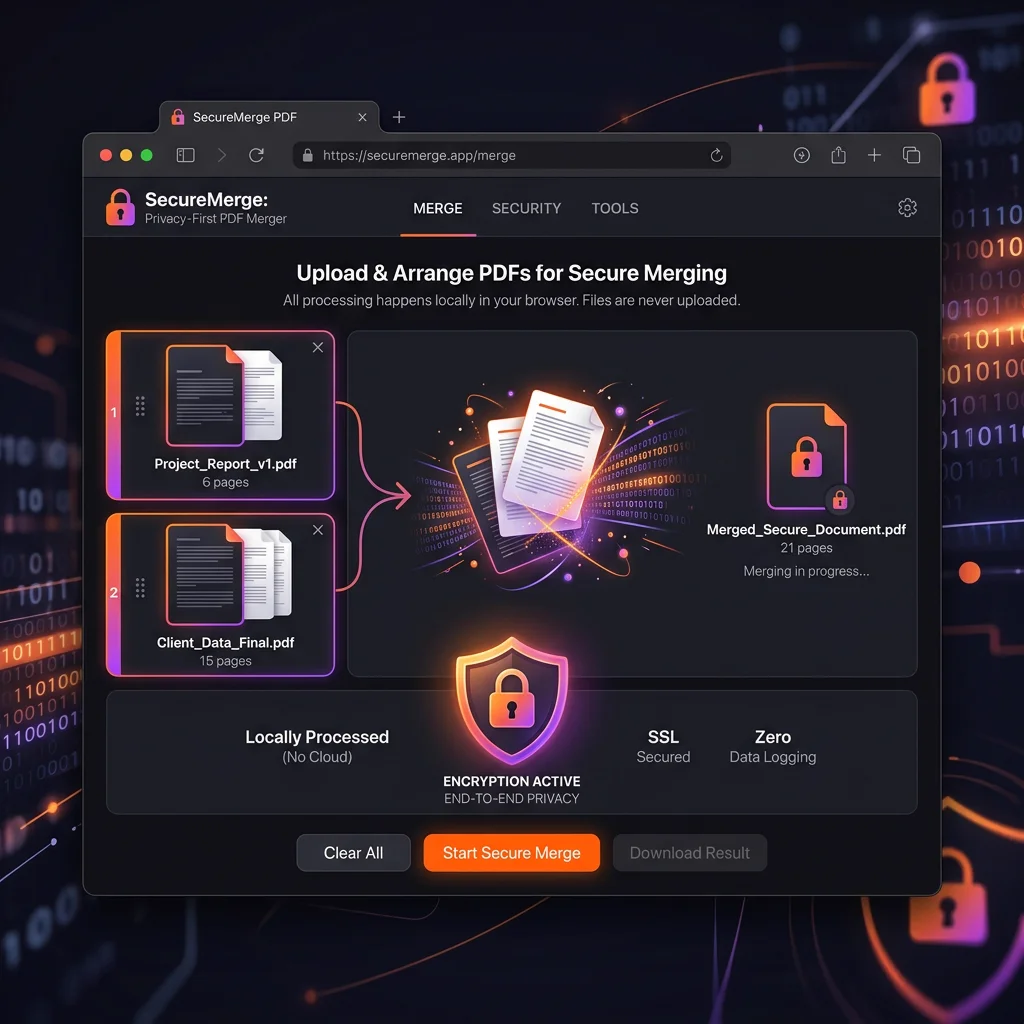
Combining document resources is a regular necessity in today's digital workspaces. Whether you need to join monthly invoices, consolidate legal contracts, compile academic transcripts, or coordinate student projects, the Portable Document Format (PDF) remains the standard file type. However, standard operations often present a security dilemma: how do you combine these documents quickly without exposing confidential information? Many popular online utility sites require you to upload your files to their external servers, creating potential risks for sensitive files like financial statements, tax reports, resumes, and medical records.
Fortunately, modern web technologies have changed this dynamic. You no longer have to send your files to external remote servers just to merge them. With client-side execution, you can merge PDF securely and combine PDF files directly inside your browser window. If you need a merge PDF in browser solution, our browser-based PDF tools perform a secure PDF merge without external network latency. By using a local browser PDF merger, your documents are processed in your device's memory, ensuring that your sensitive information remains private.
GetLocalTools provides a privacy-first utility environment that processes documents client-side. The files are not uploaded to remote databases, and all operations occur within the local sandbox of your browser. This approach is faster, eliminates upload wait times, requires no user registration, and protects your data privacy.
1. Why Merge PDF Files?
Consolidating scattered PDF pages into a single file is a common administrative task across corporate, academic, and personal workflows. Having individual pages scattered across multiple files makes document organization and sharing inefficient. Some of the most common reasons to combine PDF files include:
- Consolidating Business Invoices: Accounting departments routinely need to combine monthly vendor invoices, billing receipts, and transaction records into a single PDF document to simplify record-keeping and processing.
- Managing Legal Contracts: Legal professionals and contract managers often combine principal agreements, annexes, signature pages, and addenda into one master PDF to prevent files from being separated.
- Submitting Academic Portfolios: Students and researchers frequently compile homework sheets, essays, research notes, and references into a single PDF file for online submission portals.
- Assembling Scanned Reports: Flatbed document scanners often export each page as an individual file. Merging these files is necessary to create a readable multi-page report.
- Preparing Tax Submissions: Tax returns require organizing W-2 statements, business write-offs, receipt photos, and income summaries into a single file for submission to government offices or accountants.
Combining documents into a single PDF simplifies file management and ensures that recipients receive all necessary pages in a single, organized file. However, it is essential that this consolidation process is handled securely.
2. Why Traditional Online PDF Mergers Can Be Risky
The convenience of clicking a free tool page to merge files online can mask the potential security risks involved. When you use traditional cloud-based utility sites, your files must traverse the network to be processed on remote servers. This introduces several potential vulnerabilities:
Server-Side Storage and Caching: Many cloud services save files in temporary directories on their servers to process the documents. While these services often state that files are deleted within an hour, those documents remain exposed to potential interception, server log leaks, or configuration errors during that time window. For corporate files or personal data, this storage window presents a clear risk.
Third-Party Access: Free online tools are sometimes operated by entities that monetize user data. By uploading files to their infrastructure, you grant them access to scan, index, or analyze your files, which can compromise the privacy of proprietary business strategies, patient records, or financial disclosures.
Regulatory Compliance Issues: Privacy regulations like Europe's General Data Protection Regulation (GDPR), the California Consumer Privacy Act (CCPA), and the Health Insurance Portability and Accountability Act (HIPAA) regulate the handling of personally identifiable information (PII) and protected health information (PHI). Uploading documents containing sensitive customer or patient data to external servers without strict data processing agreements violates compliance controls.
Using a dedicated local PDF merger that runs entirely client-side helps avoid these compliance risks. Keeping your data on your device ensures your document workflow complies with data protection regulations. Choosing an offline PDF merger helps you combine PDF documents safely because the entire process runs locally, acting as a reliable PDF merger without cloud upload vulnerabilities.
3. How Browser-Based PDF Merging Works
Historically, secure document processing required installing local desktop software. Today, modern browser engines can run complex application code locally using JavaScript and WebAssembly (Wasm), allowing you to process files directly in a browser tab.
When you use a browser-based tool like GetLocalTools, the page loads the user interface and processing code into your browser's memory. When you select PDF files to merge, the HTML5 File API reads the file bytes directly from your device into the browser's memory sandbox. A JavaScript engine (like `pdf-lib`) then parses the PDF structures, combines the pages, and generates a merged document locally. This process allows you to merge PDF without uploading files to external servers.
This client-side workflow is illustrated in the diagram below:
This sandboxed environment ensures that your files never leave your device. The process runs locally in your browser's temporary memory, and closing the tab completely clears the data. This provides a fast, secure way to merge files without network latency or data privacy concerns.
4. Step-by-Step Guide
Merging your files locally using GetLocalTools is a quick and simple process. Follow these steps to combine your documents securely:
-
1
Open GetLocalTools PDF Merger
Open your browser and navigate to the local PDF Merger tool. The browser downloads the interface and caching scripts, allowing you to use it offline.
-
2
Select your PDFs
Drag and drop your files into the workspace, or click the file selector to choose files from your local storage. The tool loads the files directly into your browser tab's RAM.
-
3
Arrange page sequence
Use the visual grid to arrange the files in your preferred order. You can drag cards to adjust the sequence or remove unnecessary files before merging.
-
4
Combine and download
Click the merge button. The JavaScript engine combines the files in memory and prompts you to save the new PDF directly to your device.
This process takes only a few seconds, as it bypasses the network upload and download queues of traditional server-based tools. It is a secure, efficient way to manage your PDF files.
5. Benefits of Local Processing
Processing files client-side offers key advantages over traditional cloud-based utilities, especially when handling sensitive documents. The table below compares the two approaches:
| Feature Attribute | Traditional Cloud Mergers | GetLocalTools Browser Merger |
|---|---|---|
| File Privacy | Low (Files are uploaded to remote servers) | High (Files stay locally on your device) |
| Processing Speed | Variable (Dependent on upload/download speeds) | Fast (Processes instantly in local memory) |
| Data Theft Risk | High (Files can be intercepted or cached) | Zero (No remote data transfer occurs) |
| Offline Capabilities | No (Requires a constant internet connection) | Yes (Can run offline once loaded) |
| Registration / Account | Often (Requires registration for large files) | No (Free, unlimited access for everyone) |
Client-side processing eliminates data transfer overhead, making it a faster and more secure option. It allows you to maintain full ownership and control of your files throughout the document optimization process (the same sandbox environment can also be used to convert PNG to JPG without losing quality).
6. Best Practices
To ensure your merged PDFs are clean, readable, and properly formatted, keep these best practices in mind:
- Verify page order before merging: Check the sequence of your files in the workspace grid before processing to ensure pages are arranged correctly.
- Remove unnecessary pages: Use a tool like Delete PDF Pages to remove blank pages or duplicate content before merging.
- Rotate incorrect pages: Use a tool like Rotate PDF Pages to fix any upside-down or landscape pages so they match the rest of the document.
- Compress large files afterward: If the merged PDF is too large, use a tool like PDF Compressor to reduce the file size for easier sharing. You can also read our guide on How to Compress PDF Without Uploading Files to optimize document sizes securely.
- Use descriptive file names: Give your merged PDF a clear, descriptive name to help keep your files organized.
- Check file compatibility: If you are combining different document formats, convert image files first using JPG to PDF before merging them. If you need to extract pages as images, you can use PDF to JPG.
Following these steps helps ensure your combined documents look professional, are correctly organized, and are ready for distribution or archiving.
Ready to Merge Your PDFs?
7. Frequently Asked Questions
Yes, you can merge PDF files securely without uploading them by using client-side tools like GetLocalTools. The merging logic executes directly inside your browser memory using JavaScript and WebAssembly, so your files never leave your device.
Browser-based PDF merging is the safest option because it eliminates server-side processing risks. Files are loaded locally, processed in a sandboxed browser tab, and saved directly to your hard drive, removing vectors for server leaks or data harvesting.
No. GetLocalTools does not possess a backend database or file storage system for user files. All document merging is processed locally in your machine's RAM and is permanently cleared as soon as you close or reload the browser tab.
Because GetLocalTools runs on your device's hardware resources, there are no artificial file size limits. The maximum file size is only limited by your system's RAM capacity and browser tab memory allocation limits.
For security reasons, password-protected PDFs must first be unlocked before they can be merged. The browser-based interface will prompt you to enter the document password locally to decrypt the file contents before combining them. You can read more about this in our guides: How to Password Protect a PDF File Securely and How to Unlock a Password-Protected PDF Safely.
Yes, GetLocalTools' PDF Merger is fully responsive and compatible with modern mobile browsers on Android and iOS devices, processing documents client-side just like a desktop browser.
Yes, once the GetLocalTools PDF Merger page is loaded, the page caching system and scripts reside locally. You can disconnect your device from the internet entirely and merge your documents offline.
Yes, the GetLocalTools PDF Merger is 100% free. There are no subscriptions, limits, advertisements, watermarks, or premium barriers since the computing is handled on your own device rather than remote servers.
8. Conclusion
In digital workspaces, document utility tasks like merging PDFs should not require you to compromise data security. Traditional cloud tools introduce risks of data exposure, database logging, and compliance violations under regulations like GDPR and HIPAA. Client-side, browser-based tools offer a safer alternative that keeps document processing entirely under your control.
Using a modern browser PDF merger allows you to combine your files securely while maintaining full ownership of your data. The processing runs locally on your device, eliminating network upload queues and ensuring your documents remain private. This local-first approach provides a fast, secure, and compliant document workflow.
Try the GetLocalTools PDF Merger and combine PDF files securely without uploading them to external servers. To learn more about secure document management and local file processing, check out our guide on Why Browser-Based Tools Are Safer Than Cloud Tools.