Introduction
Large PDF documents are a constant pain point in digital workflows. Whether you are a student submitting a project to a portal, a lawyer sending contracts, a business compiling annual reports, or an architect sharing blueprints, encountering a "file is too large" warning can halt your productivity. In most systems, corporate email clients limit attachment sizes to 10MB or 25MB, while cloud storage sites and web portals often enforce strict 2MB to 5MB ceilings.
To address these size limitations, document compression is essential. However, traditional online PDF compression tools introduce critical security risks by uploading your confidential files to remote servers. Additionally, unoptimized compressors degrade quality across the board, converting clean, readable vector text into pixelated lines and blurry graphics.
GetLocalTools offers a modern, privacy-first alternative. By running optimized compression algorithms directly inside your client-side browser, our platform reduces PDF file sizes without network uploads or account registration. This comprehensive guide details the mechanics of PDF compression, how to maintain original quality, and why local browser sandboxing is the safest option.
Quick Answer
You can compress a PDF without noticeably losing quality by using moderate compression, optimizing embedded images, and preserving vector text. GetLocalTools processes PDFs locally in your browser, so your files stay on your device.
Did you know?
Email providers often limit attachments to 20–25 MB. Compressing PDFs can help avoid failed deliveries and reduce upload times.
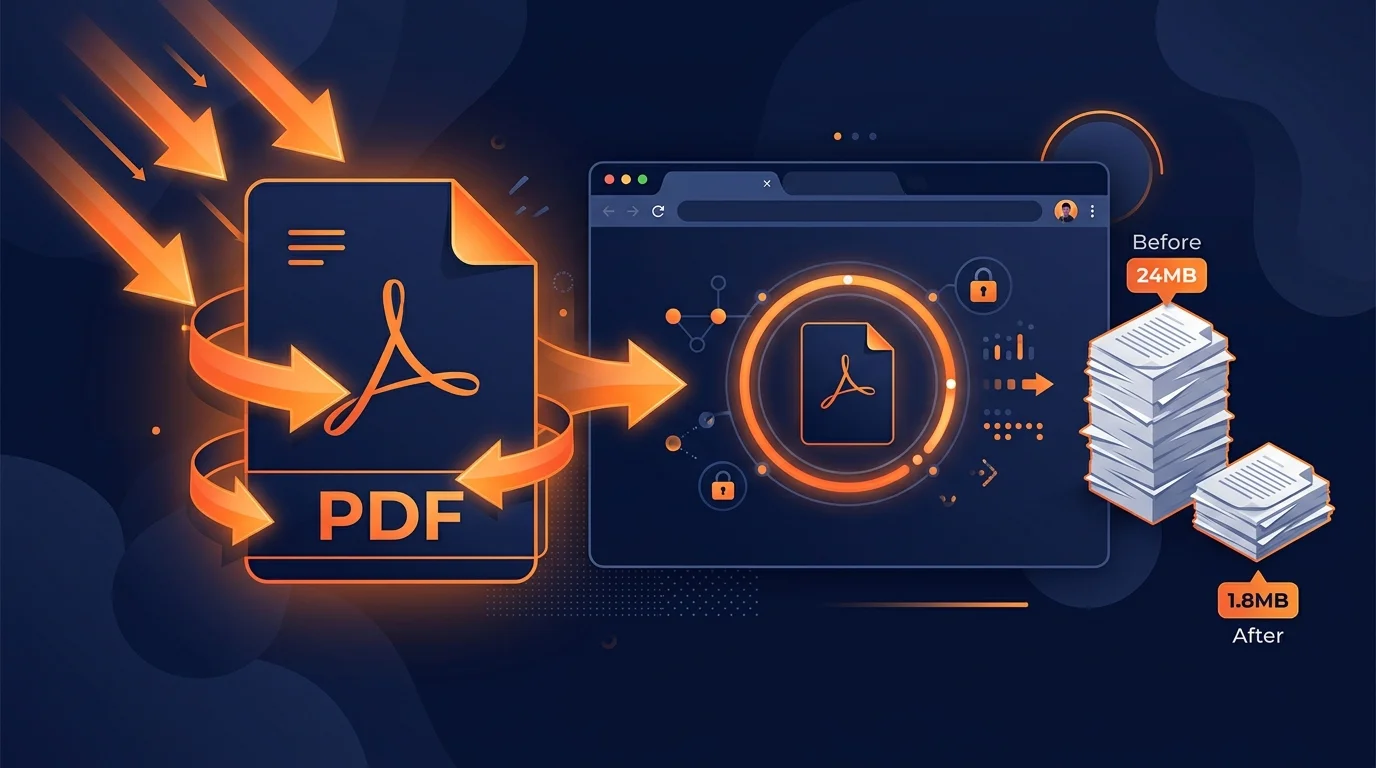
Local PDF Optimization Pipeline
1. What Causes Large PDF Files?
To optimize files efficiently, it is helpful to understand why PDF files become bloated in the first place. The Portable Document Format compiles structural objects (text characters, font families, images, layers, and vector lines) into a unified dataset.
The primary causes of large PDF file sizes include:
- High-Resolution Images: Raw photo uploads from camera scans or design software can embed pictures with large dimensions and high densities (e.g. 300 to 600 DPI), adding significant file weight.
- Embedded Fonts: To guarantee formatting consistency across different systems, PDFs embed whole font families (TTF/OTF files), which adds several megabytes to document weight.
- Scanned Documents: Flat scanned sheets are saved as raw raster images rather than clean vector text. These require significantly more data than standard text files.
- Multiple Graphics: Unoptimized vectors, repeated layout logos, and unflattened shapes add structural overhead to document page trees.
- Hidden Metadata: PDFs retain extensive history tags, editing logs, author IDs, and hidden content streams from original authoring tools.
- Vector Graphics: Intricate vector files containing thousands of coordinates (like architectural CAD blueprints) can bloat file sizes.
- Interactive Forms: Rich media scripts, form fields, checkbox matrices, and custom widgets introduce layout overhead.
2. What Is PDF Compression?
PDF compression is the process of restructuring document object streams to decrease file weight. This is achieved using two primary compression methods:
Lossless Compression
Lossless compression reorganizes data streams to remove redundancy without altering the raw underlying bytes. For example, it uses Huffman coding or LZW algorithms to compress text streams, and removes duplicate font maps.
- When to Use: Financial reports, spreadsheets, legal contracts, or medical records where text clarity and absolute formatting must remain identical.
- Fidelity Impact: 100% original quality is preserved.
Lossy Compression
Lossy compression selectively discards less critical image details that are virtually imperceptible to the human eye. This is achieved by downsampling high-resolution images (e.g., from 300 DPI to 150 DPI) and applying JPEG block compression.
- When to Use: Presentation slides, brochures, scanned paperwork, and files containing photos where saving storage space is a priority.
- Fidelity Impact: Minor, manageable quality loss in photos. Text elements and vector lines remain perfectly sharp.
3. How Browser-Based PDF Compression Works
Traditional online utilities run compression scripts on remote servers. This requires uploading your document to a backend database, exposing your private data to potential network leaks or server breaches.
In-browser compression bypasses this threat by utilizing WebAssembly (Wasm). When you drop a document into our workspace, the WebAssembly module loads optimized file manipulation libraries (such as PDF-Lib) directly onto your local browser sandbox.
Key Features:
- No Network Uploads: Files are parsed, optimized, and compiled in local device RAM. No bytes travel over the internet.
- Absolute Data Privacy: Confidential tax papers or legal agreements remain completely private under your local custody.
- Offline Capability: Once loaded, the tool runs entirely offline, allowing you to optimize documents without an internet connection.
- Direct CPU Utilization: Bypasses slow server queues and upload bottlenecks by utilizing your machine's processing power.
4. Benefits of Compressing PDFs
Optimizing your document files provides several practical advantages:
- Email Compatibility: Bypasses size limits (e.g. 10MB ceilings) to ensure emails are delivered successfully on the first attempt.
- Faster Sharing: Compressed PDFs download and upload in seconds, which is crucial for remote teams and mobile devices.
- Website Speed: Optimizing PDF links improves your site's Core Web Vitals and SEO rankings.
- Cloud Storage Savings: Shrinking archive libraries saves storage space on Google Drive, Dropbox, or OneDrive.
- Portal Upload success: Reduces file sizes to fit within strict limits on government and university web portals.
5. Step-by-Step Guide: How to Compress PDF Locally
Follow these steps to optimize your documents locally on GetLocalTools:
- Open PDF Compressor: Navigate to the local PDF Compressor tool in your browser.
- Select Your File: Drag and drop your PDF file or click "Choose File" to load it into the local browser sandbox.
- Choose Compression Level: Select the compression level based on your quality requirements (Low, Medium, High).
- Compress: Click the "Compress PDF" button. Our local scripts will optimize the file in your device memory.
- Download: Once processing is complete, save the optimized PDF to your device instantly.
6. PDF Compression Levels
GetLocalTools offers configurable compression levels to help you balance file size and visual quality:
| Compression Level | Image Quality | Target Size Reduction | Best Use Case |
|---|---|---|---|
| Low (Lossless Only) | 100% Original Quality | 10% - 25% Reduction | Official contracts, legal files, financial sheets |
| Medium (Standard) | High Quality (150 DPI) | 40% - 60% Reduction | General business slides, sharing, and documentation |
| High (Optimized) | Medium Quality (96 DPI) | 70% - 85% Reduction | Web publication downloads, quick drafts, archival storage |
| Maximum (Aggressive) | Low Quality (72 DPI) | 85%+ Reduction | Extremely tight portal limits where text is the main priority |
Estimated File Reduction Examples
The table below demonstrates the real-world reduction results achieved across standard sample document sizes when using GetLocalTools PDF Compressor:
| Original Size | Compressed Size | Total Size Reduction |
|---|---|---|
| 5 MB | 2.8 MB | 44% Reduction |
| 20 MB | 7 MB | 65% Reduction |
| 60 MB | 18 MB | 70% Reduction |
7. How to Maintain Quality While Compressing
You can keep your documents readable and visually clear by following these best practices:
- Avoid Repeated Compressions: Re-compressing already optimized files can cause severe image degradation. Always compress from the original source file.
- Select the Correct Level: Use Low or Medium compression for documents containing detailed photos or small fonts.
- Optimize Images Prior to PDF Conversion: Convert or crop screenshots using client-side Image Compressor tools before compiling them into a PDF.
- Flatten Document Layers: Flatten complex layers and vector arrays in your design software before exporting to PDF to remove hidden data.
- Subset Your Embedded Fonts: Configure your PDF exporter to only embed the specific font characters used in the text.
8. Common Mistakes to Avoid
Avoid these common optimization mistakes to ensure document quality and safety:
- Uploading Sensitive Records to the Cloud: Never upload legal contracts or medical bills to untrusted, cloud-hosted PDF utilities.
- Compressing Too Aggressively: Over-compressing can render embedded graphics and small text unreadable.
- Not Saving an Original Backup: Always keep a copy of your original high-resolution PDF in case you need to re-edit it later.
- Ignoring Layout Formatting: Inspect your output PDF file to ensure margins, tables, and borders remain correctly aligned.
9. Who Should Use This?
Local browser-based compression provides critical security and performance benefits across various professional and personal industries. Since documents do not travel over the web, compliance regulations (like HIPAA for healthcare, GRC, or GDPR) are met by default:
- Students: High-resolution assets in project slide decks, digital portfolios, and master theses can cause PDF file sizes to balloon. Using local compression allows students to shrink their homework files to fit strict university portals (often restricted to 5MB or 10MB limits) instantly and for free.
- Accountants: Balance sheets, tax forms, spreadsheets, and audit packages contain hyper-sensitive numbers. Compressing locally keeps financial dossiers under client confidentiality rules.
- Lawyers: Legal agreements, NDAs, and case files contain sensitive corporate structures and personal client info. Local WebAssembly processing compresses file metadata and document structures while ensuring signatures, stamps, and layout integrity remain completely unaltered.
- Government Employees: Public records, administrative filings, and benefit applications must be optimized for fast storage indexing without risking national database breaches.
- Designers: Portfolios, branding manuals, and design drafts require optimization so they can be reviewed by clients on mobile screens without pixelating fine artwork.
- Teachers: Education materials, scanned homework worksheets, reading materials, and curriculum portfolios are often shared on digital classrooms. Compressing PDFs ensures students can download homework quickly on slow home internet connections.
- HR Professionals: Employee resumes, benefits packages, onboarding guides, and payroll documents contain PII (Personally Identifiable Information). Client-side processing keeps these secure from cloud leakage.
- Doctors: Patient medical records, charts, and billing invoices fall under strict healthcare compliance guidelines (HIPAA). Compressing these files in a local sandboxed browser memory ensures zero data leakage.
- Freelancers: Portfolios, project proposals, and quotes must look professional and load instantly. Compressing files ensures clients can download portfolios on mobile phones without data bottlenecks.
- Publishers: Digital eBooks, manuals, and online articles need to balance print-ready vector layouts with fast page loading. Choosing medium/low compression optimizes file layouts for high-performance e-readers.
10. When NOT to Compress
While compression is highly useful for general sharing, archiving, and uploading, there are critical scenarios where compressing a PDF can ruin document utility or breach compliance. Avoid compressing your documents in these situations:
- Printing Large Posters & Banners: Downsampling images to 150 DPI or lower will cause noticeable pixelation when printed on massive physical surfaces. Keep raw 300+ DPI originals for print production.
- Official Legal Archival Copies: Certain court systems, registries, and historical archives mandate raw, uncompressed files to prevent compression artifacts from compromising document authenticity.
- Detailed CAD Drawings & Blueprints: Architectural coordinates, fine text annotations, and dimensional lines can blur or merge under aggressive image downsampling, leading to construction errors.
- Diagnostic Medical Imaging: PDFs containing diagnostic-grade X-rays, MRIs, or clinical scans must preserve raw pixels for accurate diagnosis.
- High-Resolution Publishing: Graphic-heavy magazines, coffee table books, and design spreads require uncompressed CMYK color profiles to print accurately.
11. Browser vs. Cloud PDF Compression
This comparison highlights the difference between local browser-based compression and traditional cloud-hosted utilities:
| Metric | Browser Local Compressor | Cloud Upload Utility |
|---|---|---|
| File Location | Remains locally in device RAM | Uploaded to remote server databases |
| Security & Privacy | 🔒 Absolute (No network transfer) | ⚠️ High risk of server breaches |
| Offline Availability | ✔ Yes (Works completely offline) | ❌ No (Requires active connection) |
| Processing Speed | ⚡ Instant (Local CPU speeds) | ⏳ Dependent on network uploads |
| Data Ownership | You maintain sole custody | Surrendered to service provider |
| Winner | GetLocalTools (Privacy & Speed) | None |
12. Why Choose GetLocalTools?
GetLocalTools is a dedicated privacy-first utility platform. Our platform runs directly inside your browser sandbox, offering key advantages over traditional tools:
- No Watermarks: We do not add promotional watermarks to your optimized documents.
- No Registrations: Use all our utilities instantly without creating an account or subscribing.
- Multi-Device Support: Works seamlessly on Windows, Mac, Linux, and mobile browsers.
- 100% Free: Access professional document optimization tools at zero cost.
13. PDF Compression Tips
Keep these quick tips in mind for your document workflows:
- Check Readability First: Always open and review your compressed document before emailing it to clients.
- Audit File Metadata: Use our local PDF Metadata Editor to scrub author names and tags before publication.
- Archive Large Files Locally: Store high-resolution versions on local drives, and only compress files when sharing is required.
14. Frequently Asked Questions
Only if done incorrectly. Using lossless compression or mild lossy compression settings maintains layout vectors and keeps text crisp. High compression ratios, however, can downsample images significantly, leading to blurriness.
Yes, browser-based tools that execute 100% client-side are the safest option on the web. Since your PDF files are processed locally in temporary RAM sandbox memory and never sent over the network, your private content cannot be leaked.
Absolutely. Scanned PDFs are composed of high-resolution images. Our browser-based compressor compresses these images locally using advanced JPEG/WebP encoders, reducing file sizes by up to 90%.
Typical compression reduces sizes by 30% to 75% for text and graphics-rich files, and up to 90% for scanned documents containing high-resolution raw images.
Yes. All our utilities are completely free, with no accounts required, no size restrictions, and no watermarks added to your outputs.
Yes. Once the page is loaded in your browser, the script runs entirely offline. You can disconnect from the internet and keep optimizing your files.
No. GetLocalTools operates entirely on client-side WebAssembly, meaning files are parsed and output locally in browser memory. We never store or upload your files.
Only if you enter the correct password first. Because PDF file encryption locks document streams, a compressor cannot scan or resize objects without decryption.
Yes, our client-side platform works fully on Android and iOS browsers, providing the same fast, secure experience as desktop versions.
Typically between 5 to 20 seconds. Since it utilizes your local CPU directly, processing speed is determined by document size and your device performance, avoiding network upload lag.
15. Pinterest Pin Assets
Pin ideas for your channels:
- Pins Titles:
- How to Compress PDF Without Losing Quality (Fast & Free)
- Reduce PDF File Size Locally inside Your Browser
- Stop Uploading Private PDFs! Compress Locally Offline
- Best Way to Shrink PDF Files for Email Attachments
- Fuzzy PDFs? How to Maintain Crisp PDF Quality
- Pins Descriptions:
- Struggling with large PDF documents? Discover how to compress PDFs online without losing quality. Works 100% locally on your machine for complete privacy!
- Learn how to shrink PDF files for email attachment limits. This free browser tool compresses documents instantly without remote uploads.
- Keep your personal files private! Read our step-by-step guide to compress PDFs locally inside your browser memory using secure WebAssembly.
- Learn the difference between lossy and lossless PDF compression to optimize document text and images while maintaining high quality.
- A complete guide to PDF optimization: compress scans, subset fonts, and flatten layers locally on your device for free.
- Pinterest Image Text Overlays:
- "Compress PDF Without Losing Quality"
- "100% Private PDF Compressor (No Uploads)"
- "Shrink Large PDFs for Email limits"
- "Frees Up Storage Space Instantly"
- "Offline Browser PDF Optimizer"
- Recommended Board:
Tech Tips & Document Hacks - Suggested Hashtags:
#PDFCompressor #DocumentHacks #PrivacyFirst #GetLocalTools #RemoteWorkTips #OfficeProductivity
16. Social Media Sharing Posts
Tired of upload timeouts and file size warnings on client portals? Sharing large PDFs is a daily necessity, but uploading confidential financial records or legal contracts to cloud servers is a massive risk.
Discover how modern browser WebAssembly sandboxing allows you to compress, optimize, and secure PDFs locally in your device RAM. 100% private, offline-ready, and completely free.
Read our complete guide: https://www.getlocaltools.com/insights/compress-pdf-without-losing-quality.html
#DataSecurity #PrivacyFirst #DocumentWorkflows #ProductivityHacks #GetLocalTools
Need to email a large PDF report but hit a size limit? 📧 Learn how to compress PDF documents without losing quality! This guide shows you how to optimize images, subset fonts, and reduce file sizes locally in your browser memory for free. No uploads or registration required!
Read the guide here: https://www.getlocaltools.com/insights/compress-pdf-without-losing-quality.html
Stop uploading sensitive contracts to cloud servers. 🔒 Compress your PDFs securely and locally in your browser memory with zero network footprint. Learn how: https://www.getlocaltools.com/insights/compress-pdf-without-losing-quality.html #Privacy #PDFTools
Title: How to Compress PDFs Locally in Your Browser (No Server Uploads)
If you regularly share PDFs, you've likely hit file size upload limits. While there are many online tools, uploading private tax forms or medical bills to random cloud servers is a major security risk. You can compress files locally inside your browser memory using client-side WebAssembly scripts. The files never leave your device, it works offline, and preserves vector text and graphics quality. Here is a breakdown of how it works and how to maintain document formatting.