Introduction
The Portable Document Format (PDF) remains the global standard for exchanging professional information. Since its creation by Adobe in the early 1990s, the PDF format has served a singular, critical purpose: ensuring that a document displays identically on any screen, operating system, or printer. Today, we rely on PDFs for everything from legal contracts and financial statements to student homework files, resumes, and technical guides.
Despite their flexibility, PDFs are notoriously difficult to modify. Splitting a page out of a report, combining multiple invoices, protecting a sensitive file, or converting files to PDF typically requires expensive subscriptions to commercial desktop software. While a simple search yields hundreds of "free online PDF tools," almost all of them require you to upload your files to remote cloud servers. For private financial sheets, HR records, or legal documents, uploading your files presents significant security and compliance liabilities.
This comprehensive guide reviews the best free PDF tools online, focusing on the emergence of browser-based local-first utilities that run directly inside your client browser sandbox. This ensures absolute privacy, maximum processing speeds, and full offline functionality.
1. What Are PDF Tools?
PDF tools are software applications designed to manipulate, organize, secure, or analyze the structure of PDF documents. PDF structure differs significantly from standard word processing files. While a Word document (DOCX) is reflowable, a PDF is comprised of absolute coordinates mapping objects (text, vectors, fonts, images) to exact locations on a canvas. Modifying a PDF requires specialized rendering libraries.
Key utility types include:
- PDF Editing: Rearranging, rotating, adding watermarks, numbering pages, or signing files.
- PDF Conversion: Encoding other file types (like Word, Excel, or images) into PDF coordinates, or parsing PDF objects back into raw text or format-rich DOCX layouts.
- Compression & Optimization: Reducing the bytes size of document objects and downsampling embedded images without losing readable fidelity.
- Security and Access Control: Applying user or owner passwords, generating permissions structures, or removing protection layers.
- Analysis & Extraction: Parsing document components (fonts, streams, metadata, or images) for development or forensics.
2. Why Choose Browser-Based PDF Tools?
Historically, online PDF conversion took place in backend server containers. When a user drags a file into a browser dropzone, the browser uploads the document to a remote server. The server invokes a conversion tool, generates the output file, and sends a download link back.
While functional, this model has major disadvantages:
- Data Custody and Leak Hazards: Your private document is stored in a temporary directory on a third-party server. If that backend is breached or lacks proper lifecycle cleanup rules, your data is exposed.
- Bandwidth Constraints: Uploading large documents (e.g. scans of books or legal reports) consumes bandwidth and introduces upload timeouts.
- Internet Dependency: If your connection is weak or dropouts occur, document processing fails.
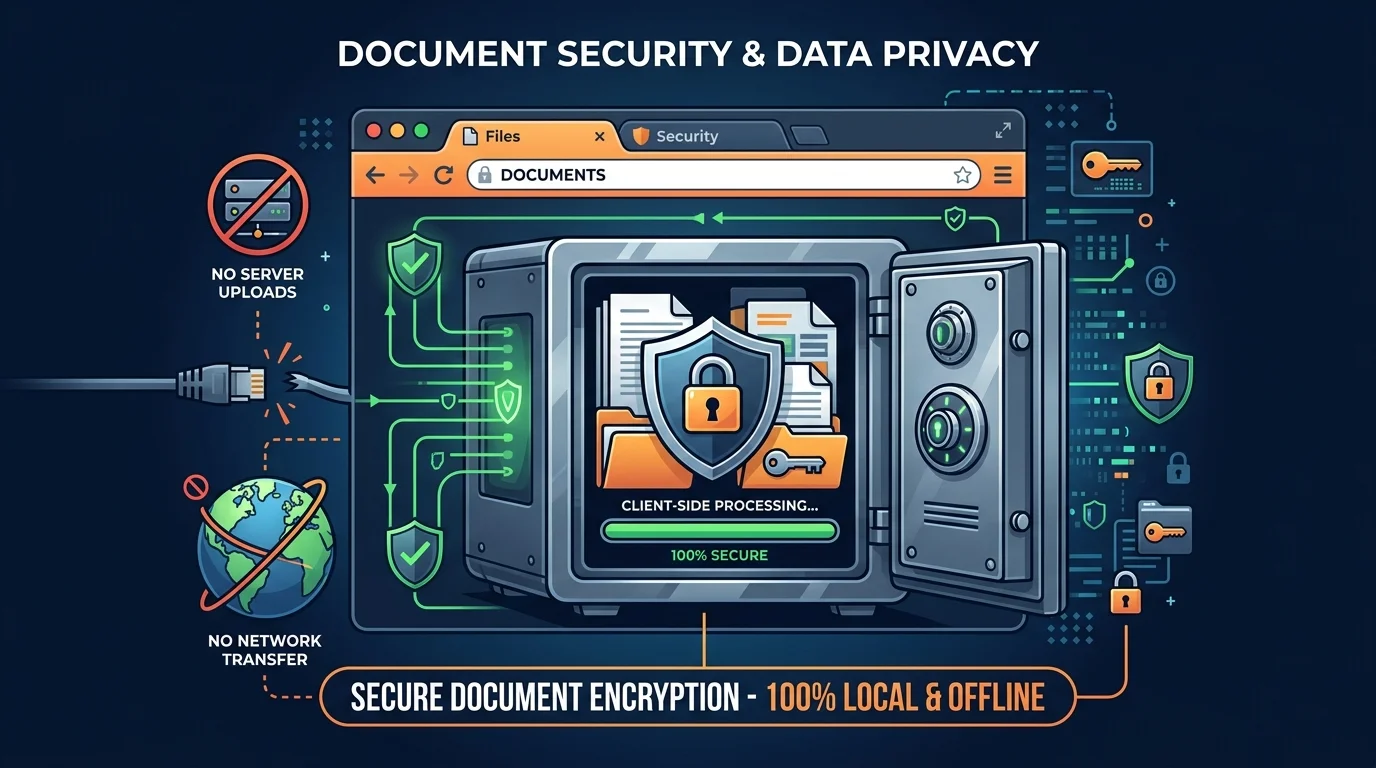
Modern web standards like WebAssembly (Wasm) and highly optimized JavaScript libraries (such as PDF-Lib and PDF.js) have changed this paradigm. By compiling file parsers into client-side assemblies, web applications can execute all document transformations directly on your local CPU.
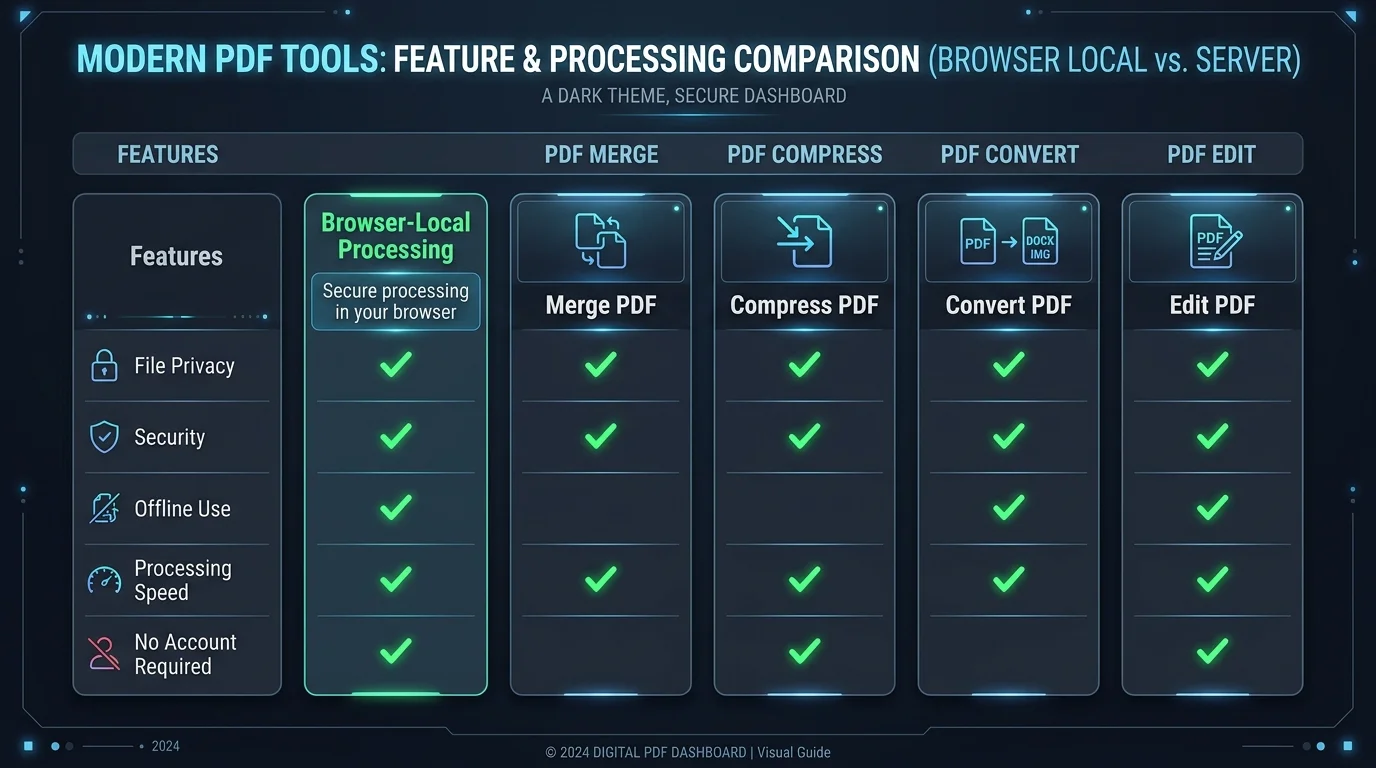
Comparison: Browser-Based vs. Cloud-Based PDF Tools
| Feature | Browser-Based Local Tools | Traditional Cloud Tools |
|---|---|---|
| File Upload Required | ❌ No (Runs locally in RAM) | ✔ Yes (Transferred to remote server) |
| Privacy & Security | 💯 Absolute (Zero data leaves device) | ⚠️ High Risk (Server custody issues) |
| Processing Speed | ⚡ Instant (Local CPU speeds) | ⏳ Dependent on network speed |
| Works Offline | ✔ Yes (Once cached in browser) | ❌ No (Requires active upload connection) |
| Registration | ❌ None (Free access for all) | ⚠️ Often requires login/limitations |
3. Best Free PDF Tools by Category
We have categorized the primary PDF utilities to help you select the exact tool required for your workspace tasks. Each tool runs 100% locally inside your web browser sandbox using client-side processing libraries.
PDF Editing & Document Assembly
PDF Merger
Combine multiple PDFs into a single organized document. Drag, drop, and rearrange page positions before rendering the unified output.
PDF Splitter
Extract specific pages or break a large multi-page PDF into separate files. Split by page range or create individual files for every page.
Delete PDF Pages
Remove unwanted pages from a document. Upload the file, select the thumbnails of pages you want to delete, and generate the cleaned output.
Rotate PDF Pages
Correct upside-down or sideways pages in scanned documents. Rotate individual pages or all pages simultaneously by 90, 180, or 270 degrees.
PDF Page Cropper
Trim margin sizes or adjust canvas dimensions of document pages. Specify precise crop margins or use an interactive selection grid.
PDF Page Extractor
Pull specific pages from a PDF and compile them into a new file without altering the source file.
PDF Page Numberer
Add custom page numbers to document headers or footers. Configure starting numbers, fonts, sizes, alignments, and formats.
PDF Header Footer Adder
Inject custom text headers or footers onto your document pages, such as copyrights, dates, or organization titles.
Sign PDF
Draw, type, or upload an image of your signature to sign PDF contracts and forms directly inside your browser window.
Add Watermark
Superimpose text or images behind or over document pages. Customize opacity, angle, color, and scale.
PDF Compression & Optimization
PDF Compressor
Downsample embedded images and compress document stream dictionaries locally to reduce files sizes significantly.
PDF Metadata Editor
Inspect and modify document metadata tags, including Author, Creator, Title, Subject, and Keywords. Scrub tracking metadata from files before sharing.
Convert to PDF
Word to PDF
Convert Microsoft Word documents (DOC, DOCX) to clean, standard PDF formatting client-side.
Excel to PDF
Render spreadsheets (XLS, XLSX) into printable PDF formats. Adjust columns, orientation, and layout grids locally.
PPT to PDF
Convert slide presentations (PPT, PPTX) to standard PDF pages for easier sharing.
JPG to PDF
Compile image files (JPG, JPEG, PNG, WebP) into PDF document pages. Configure image margins, orientation, and canvas dimensions.
TXT to PDF
Convert plain text files (TXT) to structured PDF documents. Adjust fonts, spacing, margins, and page sizes.
HTML to PDF
Convert raw HTML code or web page content into a clean PDF layout.
Markdown to PDF
Render Markdown syntax (.md files) into beautifully formatted PDF documents locally.
CSV to PDF
Convert tabular CSV files into clean PDF tables with custom column layouts and grid configurations.
XML to PDF
Parse XML syntax and render it as human-readable PDF pages or formatted tables.
JSON to PDF
Render JSON objects or data arrays into formatted PDF layout structures or structured grids.
EPUB to PDF
Convert eBook formats (EPUB) into standard PDF layouts with fixed pagination.
Convert from PDF
PDF to Word
Extract layout structures, headers, and paragraphs from PDF and recompile them into editable Word documents (.docx).
PDF to Excel
Extract coordinate tables from PDF sheets and write them into Excel (.xlsx) formatting grids.
PDF to PPT
Convert PDF pages into PowerPoint slides (.pptx), mapping document layouts to visual decks.
PDF to JPG
Rasterize PDF pages into separate high-resolution JPG images.
PDF to PNG
Convert document pages to transparent, lossless PNG images.
PDF to HTML
Convert PDF layouts into HTML code frameworks, compiling layout coordinates into CSS mappings.
PDF to CSV
Extract data tables from PDF and format them as CSV outputs.
PDF to EPUB
Convert fixed PDF pages into reflowable ePUB structures for standard e-readers.
PDF to Text
Extract raw text streams from PDF files, discarding layout assets and font variables.
PDF Technical Analysis
PDF Font Extractor
Inspect and extract embedded font files (TTF, OTF, WOFF) from PDF headers.
PDF Image Extractor
Scan document page streams and extract embedded image assets in original WebP, JPG, or PNG formats.
PDF Text Searcher
Perform deep keyword lookups inside PDF files, including text embedded inside scanned images using client-side OCR.
PDF Stream Parser
Examine the raw objects, page trees, and cross-reference stream dictionaries inside a PDF file.
4. Most Popular PDF Workflows
Many documentation tasks require chaining multiple utilities together. Understanding standard PDF workflows helps optimize document workflows while preserving data privacy.
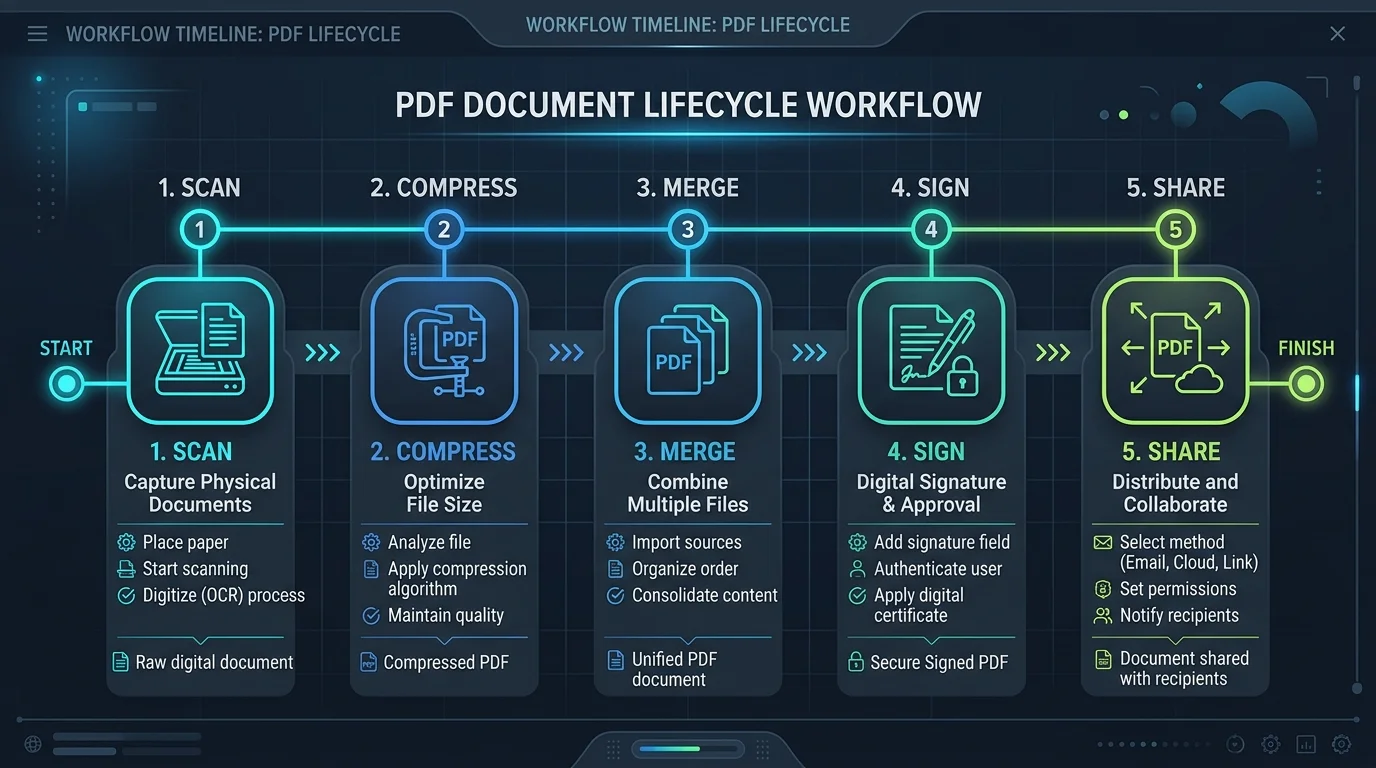
Workflow A: Paper Invoicing and Client Portals
When processing paper receipts or contracts for client billing portals, a common workflow includes scanning paper documents, compressing sizes to fit portal limits, merging them into a unified report, and applying a signature.
Workflow B: Report Publication & Copyright Protection
Publishing business templates or worksheets online typically requires converting drafts to PDF, optimizing file sizes for fast web loads, and overlaying watermarks to identify the source.
Steps in the pipeline:
- Draft Conversion: Compile draft DOCX files into PDF using the Word to PDF converter.
- Size Compression: Process the output PDF through the PDF Compressor to minimize image files size.
- Watermark Overlay: Overlay branding text using the Add Watermark PDF tool.
- Publish: Safe and fast distribution with optimized, protected files.
5. PDF Tools Comparison Table
This comparison table summarizes key details for the major tools in our PDF cluster, helping you choose the right tool for your specific workflow.
| Tool | Core Purpose | Beginner Friendly | Privacy | Best For |
|---|---|---|---|---|
| PDF Merger | Combine multiple files | 🟢 Yes | 🔒 100% Client-Side | Assembling invoices and chapters |
| PDF Splitter | Extract or divide pages | 🟢 Yes | 🔒 100% Client-Side | Isolating sections of manuals |
| PDF Compressor | Reduce file size | 🟢 Yes | 🔒 100% Client-Side | Email attachment optimization |
| Word to PDF | Convert doc formats | 🟢 Yes | 🔒 100% Client-Side | Formatting resumes and briefs |
| Sign PDF | Apply visual signatures | 🟢 Yes | 🔒 100% Client-Side | NDAs, leases, and agreements |
| PDF Metadata Editor | Clean document tags | 🟡 Intermediate | 🔒 100% Client-Side | Anonymizing files before release |
| PDF Stream Parser | Inspect raw source code | 🔴 Advanced | 🔒 100% Client-Side | Debugging PDF object generators |
6. Why Privacy Matters in PDF Processing
PDF documents typically contain highly confidential data. Tax forms list social security numbers; contracts contain financial details, signatures, and addresses; and medical records contain sensitive patient information.
When you upload these files to a traditional online PDF tool, you surrender custody of your data. The service provider now controls the document, and a single database vulnerability or server breach could expose your private documents to third parties.
GetLocalTools was created to solve this problem. Our platform executes code directly on your local CPU. When you drop a document into our workspace, the file remains in your device's memory. This architecture guarantees:
- Zero Data Transfers: No document bytes are uploaded to external databases.
- Compliance Alignment: Conforms to HIPAA, GDPR, and ISO security frameworks by keeping files on-device.
- Zero Server Footprints: No residual files are left in server directories or temp folders.
7. Tips for Choosing the Right PDF Tool
When evaluating PDF utilities, consider these key criteria:
- Security Requirements: If the document contains confidential or proprietary information, prioritize browser-based local tools to ensure the file remains on your device.
- File Size Constraints: Cloud-based tools often enforce strict limits or throttle speeds. Local tools utilize your device's CPU and RAM, allowing you to process large files without artificial limitations.
- Formatting Fidelity: Test layout conversions (e.g. PDF to Word) with a sample page to ensure text alignments and image positions are preserved accurately.
8. Frequently Asked Questions
The best free PDF tools are browser-based local utilities like GetLocalTools. Unlike standard cloud tools, they perform actions directly inside your browser memory using WebAssembly, meaning you never upload files to an external server.
Yes. Local tools like the PDF Merger on GetLocalTools process documents entirely on your client device. You can rearrange pages and merge files without sending them to a third-party server.
Yes, browser PDF tools that run 100% client-side are the safest option available. Since your files are processed in your browser memory and never uploaded to any backend database, there is zero risk of data intercept or breach.
You can compress PDFs locally using the PDF Compressor. The tool shrinks the document content stream and downsamples images directly in your browser, maintaining quality without uploading the file.
You can use the PDF to Word converter on GetLocalTools to convert document layout structures into editable DOCX format client-side, preserving layout formatting without sharing the file's text.
Yes, our Sign PDF tool allows you to draw or upload your signature and apply it to document pages locally inside the browser. Your signature and document remain completely private.
Yes. Once the GetLocalTools page is loaded in your browser, the script runs entirely client-side. You can disconnect your internet connection completely and continue using all PDF utilities offline.
OCR stands for Optical Character Recognition. It analyzes images or scanned PDF documents and extracts readable text. GetLocalTools handles this inside the browser using client-side OCR algorithms.
Yes, GetLocalTools provides free, browser-based editing features such as page deletion, rotation, metadata cleaning, headers/footers, and page numbers with zero cost and no subscription prompts.
Yes. We do not use any server uploads or store client files. All processing occurs locally on your machine, which guarantees absolute data security for contracts, medical records, and financial statements.
PDF utilities are dedicated tools that modify, extract, or compile segments of PDF documents. These include splitters, mergers, metadata editors, page numberers, and compression utilities.
Yes, using our client-side Word to PDF tool, you can render DOCX layouts to high-quality PDF files locally inside your browser memory without server interaction.
You can use the PDF Splitter tool on GetLocalTools. Input page ranges or split each page into a separate document, and the output is downloaded directly from your browser memory.
Because client-side tools run in the browser, file limits are based on your device's RAM capacity. This allows you to process large files without the upload timeouts common to cloud tools.
Yes, you can drag and drop JPG, PNG, and WebP images into the JPG to PDF tool to compile them into standard PDF formats locally.
A PDF Stream Parser is an advanced analysis tool that inspects the raw objects and content streams inside a PDF. It helps developers inspect formatting and structure safely.
The PDF Metadata Editor on GetLocalTools allows you to view and edit fields like Author, Title, Subject, and Keywords to scrub identifiers before distributing documents.
No. GetLocalTools requires no registrations, sign-ups, or subscriptions. You simply visit the site and process files immediately.
Our modern browser engine handles fonts and page dimensions carefully to deliver high-quality conversions that match the original formatting standards.
Yes, you can upload a PDF into the Delete PDF Pages tool, select the specific pages you wish to remove, and download the updated PDF immediately.
PDF preserves fixed formatting layouts, making it ideal for official documents, while EPUB is reflowable, which is better for e-readers. You can convert between them locally on our platform.
Scanned PDFs store text as an image. You can use our client-side PDF Text Searcher which applies local OCR to locate keywords within the document pages.