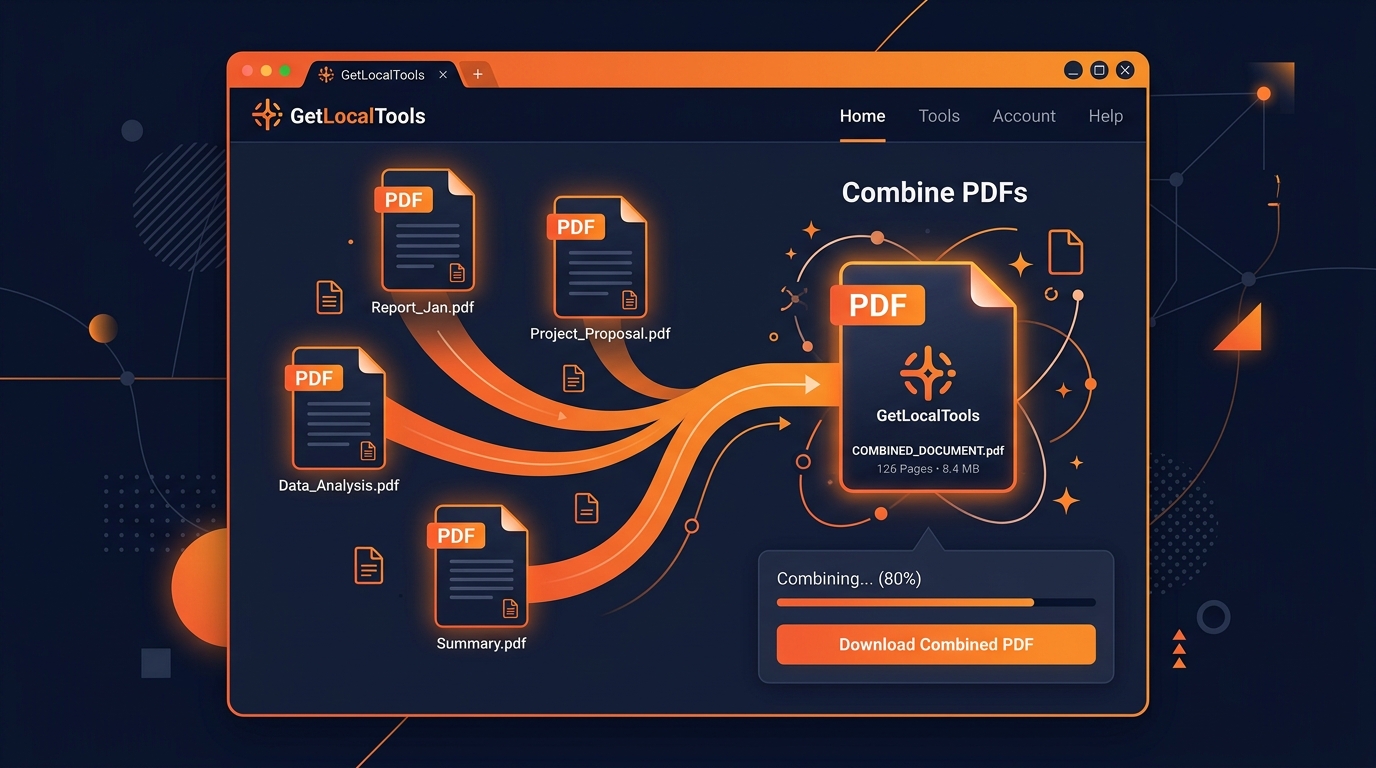
Manage your documents locally: Combine multiple PDF files securely inside your web browser sandbox.
In the modern digital landscape, the Portable Document Format (PDF) has solidified its position as the global standard for document exchange. Whether managing corporate invoicing, compiling academic applications, assembling legal archives, or dispatching graphic design portfolios, PDF files ensure structural layout formatting remains identical regardless of the viewing screen, software, or operating system.
However, this structural lock presents a distinct challenge: managing fragmented PDF assets. Sending dozen individual document components to a client, partner, or portal degrades usability, increases processing overhead, and risks critical file delivery failures. The obvious solution is to combine multiple PDFs into a single, cohesive file.
Traditionally, merging PDF files online meant uploading your files to remote cloud servers. While simple, uploading private contracts, tax filings, client reports, or health profiles to unknown servers poses massive security and privacy compliance threats. GetLocalTools solves this compromise. By executing high-performance WebAssembly compilers directly inside your local browser sandbox, our PDF Merger combines files locally on your machine with zero network uploads, zero registration, and absolute privacy.
Quick Answer
You can merge PDF files online securely by using a browser-based PDF merger that processes files locally on your device. GetLocalTools combines multiple PDFs without uploading them to a server, helping protect your privacy while preserving document quality.
1. What Does Merging PDF Files Mean?
At its core, merging PDF files involves concatenating separate document resources into a single, continuous output document. In the ISO 32000 specification for PDF document structures, a PDF file is not merely a string of text characters, but a highly complex object hierarchy containing page catalog nodes, outline reference trees, character fonts, stream vectors, cross-reference tables (XREFs), and compression dictionaries.
When you run a file merge, the compiler does not simply stitch files end-to-end. It reconstructs the primary Page Tree, updates the trailer dictionary root offsets, resolves conflicting font names, and maps the cross-reference indexes so the viewer displays page streams sequentially.
This process must preserve the integrity of original layouts:
- Vector Preservation: All original drawings, paths, signature lines, and coordinate layouts must remain in vector format without pixelating.
- Image Mapping: Color spaces (RGB/CMYK) and embedded bitmap assets must not be downsampled or re-compressed unless explicitly requested.
- Interactive Elements: Embedded form fields, annotations, bookmarks, and internal links should resolve relative references correctly.
2. Why Merge PDF Files?
Merging PDF files is a fundamental workflow optimization required across business, education, and professional activities. Storing and sharing fragmented files increases administrative drag.
Unified Business Reporting
Annual reports, financial summaries, and market forecasts are typically compiled by multiple divisions. Marketing contributes slides, accounting provides spreadsheets, and operations delivers text summaries. Merging these segments creates a single professional binder ready for board presentations or stakeholder distribution.
Invoicing and Receipts Audits
Tax preparation and business expense audits require reconciling hundreds of small files. Merging a month's receipts, supply statements, and invoices chronologically into a single ledger keeps audits organized and prevents lost documentation.
Legal Case File Management
Attorneys handle massive evidentiary folders, case outlines, deposition files, and contracts. Merging separate records, declarations, and exhibits into a single index-mapped document is required for official court submissions.
Student Portfolio & Homework Concatenation
University portals and online assignment graders generally restrict submissions to one attachment. Merging project outlines, lab datasets, source citations, and appendices ensures graders view all materials in page order.
3. Browser-Based PDF Merging (WebAssembly Deep Dive)
Traditional PDF merging tools fall into two categories: desktop applications (like Adobe Acrobat) that require expensive licensing and local installation, or online cloud services that require you to upload files. Cloud uploads pose massive security risks. The files travel over the network to remote backend servers, where they are written to disk, processed, and cached. This makes them vulnerable to database leaks, man-in-the-middle interception, and administrative indexing.
Browser-Based Merging utilizes WebAssembly (Wasm) to combine files locally. WebAssembly compile instructions run binary routines inside your browser's sandboxed environment at near-native CPU speeds.
Privacy Isolation Lifecycle Diagram
When you select files in GetLocalTools:
- The files are loaded as raw `Uint8Array` binary byte buffers into your browser's local RAM buffer.
- A client-side compiler parses the document's header catalog nodes and catalog references.
- The pages are joined in order, reference tables are recalculated, and a new PDF file is generated locally.
- The final document is downloaded directly. No data packets ever leave your device, ensuring total compliance with privacy regulations.
4. Step-by-Step Guide: How to Merge PDFs with GetLocalTools
Merging your PDF files locally takes only a few clicks. Follow this step-by-step guide:
- Open GetLocalTools PDF Merger: Navigate to the PDF Merger tool page in your browser.
- Select PDFs: Click the "Browse Files" button or drag-and-drop your target PDF files into the active upload zone. You can select multiple documents at once.
- Arrange Pages: Drag and drop the loaded file thumbnails to re-order the pages. You can also rotate individual pages or delete unnecessary slides before merging.
- Run the Local Compiler: Click the "Merge PDFs" button. The client-side compiler will compile the files inside your local browser memory in seconds.
- Download Your Merged PDF: Click "Download Merged PDF" to save the combined document directly to your local storage.
Local PDF Merging Pipeline
5. Benefits of Browser-Based PDF Merging
Choosing browser-based PDF merging provides major advantages over traditional cloud-based utilities and heavy desktop software installations.
- Total Data Privacy: Files are never uploaded, preventing data leakage. Compliance rules like HIPAA or GDPR are met by default.
- Zero Server Latency: Traditional cloud tools require uploading files before processing. Browser-based tools process files instantly, bypassing internet upload speeds.
- No Accounts Required: You can merge files instantly without registration barriers, sign-ups, or spam emails.
- No File Size Restrictions: Cloud mergers impose upload limits (often restricted to 50MB or 100MB). GetLocalTools runs on your local memory, letting you compile massive files.
- Fully Works Offline: The merger logic runs entirely on client-side WebAssembly. Once the page is loaded, you can merge files even if your internet drops.
6. Common PDF Merging Mistakes to Avoid
While merging PDFs is a simple task, minor errors can compromise formatting, accessibility, or security.
- Ignoring Page Orientation Discrepancies: Mixing portrait and landscape layouts in source files can break printing. Realign page rotations in our workspace before merging.
- Accidentally Including Duplicate Pages: Check for duplicate slides before merging to avoid sending repetitive documents to stakeholders.
- Attempting to Merge Password-Protected Files: If a source PDF has encryption, a compiler cannot read its catalog resources. Decrypt locked files using our Unlock PDF tool first.
- Overlooking Corrupted Layout Offsets: Old, corrupted PDFs can contain broken cross-reference indices. This can cause the final document to show blank pages. Recompile corrupted files before merging.
- Not Backing Up Source Files: Always keep copies of your original files. This ensures your data stays safe if you make mistakes during merging or rearranging.
7. Best Practices for Merging PDFs
Following these best practices ensures your combined documents look clean and professional:
- Establish a File Naming System: Before uploading, rename your source files with numbered prefixes (e.g., `01-introduction.pdf`, `02-report.pdf`). This ensures pages load in the correct sequence.
- Optimizing and Compressing Files First: Combine files can result in large sizes. Compress individual image-heavy files using our PDF Compressor before merging to keep sizes manageable.
- Scrub Unnecessary Source Pages: If a document has blank pages, cover sheets, or outdated tables, remove them using our Delete PDF Pages tool before merging.
- Verify Post-Merge Link Paths: Open the final merged document in your PDF reader to ensure links, bookmarks, and index page numbers resolve correctly.
8. Browser vs. Cloud PDF Merging
This comparison highlights the key differences between browser-based local tools and cloud-upload utilities:
| Feature | GetLocalTools (Browser) | Typical Cloud Services |
|---|---|---|
| File Processing | 100% local on your device | Remote upload to third-party servers |
| Privacy & Compliance | Excellent (Zero transmission leaks) | Varies (Data policies subject to change) |
| Offline Support | ✅ Supported (Works without internet) | ❌ Not Supported |
| Processing Speed | Instant (Determined by local hardware) | Dependent on network upload speeds |
| Usage Constraints | Unlimited, free forever | Often limited by file sizes or paywalls |
| Utility | Execution Mode | Cost Structure | Max File Size Limit |
|---|---|---|---|
| GetLocalTools | Client-Side Sandbox (Wasm) | 100% Free | No Limit (Uses local RAM) |
| Adobe Acrobat Web | Server Processing | Freemium (Subscription required) | 100 MB limit (Free Tier) |
| ILovePDF | Server Upload | Freemium | Limited on Free accounts |
| Smallpdf | Server Upload | Freemium (Daily page caps) | Varies |
| Feature | Merge PDFs | Split PDFs |
|---|---|---|
| Primary Action | Combines separate documents | Extracts page ranges into new files |
| Page Ordering | Rearranges multiple files sequentially | Isolates individual pages |
| Output Result | One combined PDF document | Multiple separate PDF files |
| Metric | Before (Split Files) | After (Merged File) |
|---|---|---|
| Email Attachments | Multiple attachments (high bounce risk) | One attachment (fast delivery) |
| Archiving Indexing | Hard to track, separate directory folders | Single indexed document |
| Stakeholder Viewing | Opening and switching between tabs | Seamless scroll in a single page view |
9. Real-Life Industry Use Cases
Local browser-based merging is a highly useful workflow solution across various sectors:
- Students: Combine project outlines, homework papers, source citations, and bibliographies into a single portfolio for school submissions.
- Teachers: Merge lesson slides, scanned worksheets, and homework pages to share as a single resource in digital classrooms.
- Lawyers: Combine evidence files, agreements, case summaries, and declarations into structured, court-compliant binders.
- Accountants: Combine receipts, invoices, statements, and tax worksheets into a single, secure client financial package.
- HR Professionals: Combine resume folders, references, onboarding agreements, and payroll documents into single employee profiles.
- Government: Combine records, benefit applications, and tax files securely without exposing sensitive personal data to third-party databases.
- Publishers: Combine text outlines, graphics sheets, and reference sections to create digital manuals and eBooks.
10. Frequently Asked Questions
Read answers to common questions about merging PDF files securely:
Open our browser PDF Merger, upload your files, drag them into the correct order, and click Merge PDFs to download your combined document instantly.
Yes. Our tools process files locally inside your browser memory using WebAssembly. Your files are never sent over the network, ensuring total privacy.
No. We operate entirely client-side. The files remain on your device throughout the entire merging process.
You must remove password protection first using our PDF Unlocker. Encrypted files must be decrypted before page elements can be compiled.
Yes. Scanned pages are compiled sequentially. You can merge high-resolution image scans locally without losing formatting.
Our browser tools have no file limits. You can combine dozens of files, subject only to your local hardware's RAM capacity.
Yes, local processing prevents network sniffing and security leaks, making it the most secure method online.
No, merging does not alter vector layout structures or compress images. The original quality of text and images is preserved.
Yes, you can drag and drop your file thumbnails to rearrange pages and change the sequence before exporting the merged file.
Yes, our website is fully responsive. You can merge PDFs directly in Safari, Chrome, or Firefox on iOS and Android devices.
WebAssembly (Wasm) is a binary technology that allows compiled code to run inside browser web workers at near-native speeds. This enables heavy PDF operations to execute directly on your device rather than a remote cloud server.
No. We do not have backend servers storing your files. Once you close the tab, the compiled file is cleared from your temporary browser RAM sandbox.
Yes, our tool supports merging mixed-orientation files. Each page maintains its original orientation within the final combined file.
Typically between 2 to 10 seconds. Since there are no network uploads, the process is extremely fast and limited only by your device's CPU.
Failures are usually caused by heavily corrupted PDF files or running out of local device memory on very low-spec phones. Try merging fewer files at once or closing background applications.
You must convert your image files to PDF format first using our image-to-pdf tools. Once converted, you can merge them with other PDF documents.
No. The local merger runs directly in your standard browser sandbox without requiring browser extensions or plugins.
No, all GetLocalTools utilities are 100% free with no paywalls or daily usage limits.
Yes. Our website works across Windows, macOS, Linux, ChromeOS, and mobile platforms.
Yes. Because files never leave your device, this method automatically complies with strict data laws like GDPR, HIPAA, and CCPA.
13. Conclusion
Merging PDF files is a vital step in document workflow management. However, document convenience should never compromise data security. Traditional cloud upload tools expose private records, invoices, and folders to security breaches.
GetLocalTools offers a modern, secure solution. Our client-side PDF Merger combines files inside your browser using WebAssembly. This delivers fast processing, unlimited usage, and total compliance—keeping your files safely on your device.
14. Pinterest Pin Assets
Pin ideas for your channels:
- Pins Titles:
- How to Merge PDF Files Online (Fast & Private)
- Combine PDF Documents Locally inside Your Browser
- Stop Uploading Private PDFs! Merge Offline Securely
- Best Way to Combine PDF Files for Free
- How to Merge Multiple PDFs into One Document
- Pins Descriptions:
- Need to merge PDF files? Learn how to combine documents securely inside your browser memory using local WebAssembly. Works 100% offline!
- Tired of uploading contracts or invoices to cloud servers? Read our step-by-step guide to merge PDFs safely without server uploads.
- Keep your personal files private! Discover how our free browser tool combines multiple PDF documents instantly with zero registration.
- A complete guide to PDF merging: combine page orientations, subset fonts, and organize layout sequences locally.
- Learn the differences between local and cloud-based PDF mergers and why local browser-based sandboxing is the safest choice.
- Pinterest Image Text Overlays:
- "Merge PDF Online (100% Private)"
- "Combine PDFs Without Cloud Uploads"
- "Safe, Local PDF Merger"
- "Stitch PDF Files Instantly"
- "Offline Browser PDF Combiner"
- Recommended Board:
Tech Tips & Office Hacks - Suggested Hashtags:
#PDFMerger #OfficeProductivity #DataSecurity #PrivacyFirst #DocumentWorkflow #RemoteWorkHacks
15. Social Media Sharing Posts
Still uploading confidential business reports, legal exhibits, or patient files to cloud servers just to merge them? 🔒 Document convenience shouldn't compromise client confidentiality.
Discover how client-side WebAssembly allows you to combine and arrange PDF pages locally inside your browser RAM. 100% secure, offline-compatible, and GDPR compliant by default.
Read our complete guide: https://www.getlocaltools.com/insights/how-to-merge-pdf-files-online.html
#DocumentWorkflow #DataCompliance #PrivacyFirst #OfficeProductivity #GetLocalTools
Tired of upload size limits when combining document files? 📁 Learn how to merge PDF files online without uploading them to a third-party server. Our guide walks you through secure, local browser-based combining. Free, fast, and completely private!
Read the guide here: https://www.getlocaltools.com/insights/how-to-merge-pdf-files-online.html
Stop uploading private contracts to cloud servers just to merge them. 🔒 Combine files securely and locally in your browser memory with zero network footprints. Learn how: https://www.getlocaltools.com/insights/how-to-merge-pdf-files-online.html #Privacy #OfficeTips
Title: How to Combine PDFs Locally inside Your Browser Sandbox (No Cloud Uploads)
When merging PDFs, many people rely on online services. However, sending tax files, resumes, or statements to backend servers poses major compliance risks. You can combine and re-order PDF pages locally using client-side WebAssembly. The files never leave your device, it operates fully offline, and preserves layout vector formatting. Here is a technical breakdown of how it works and how to avoid alignment errors.