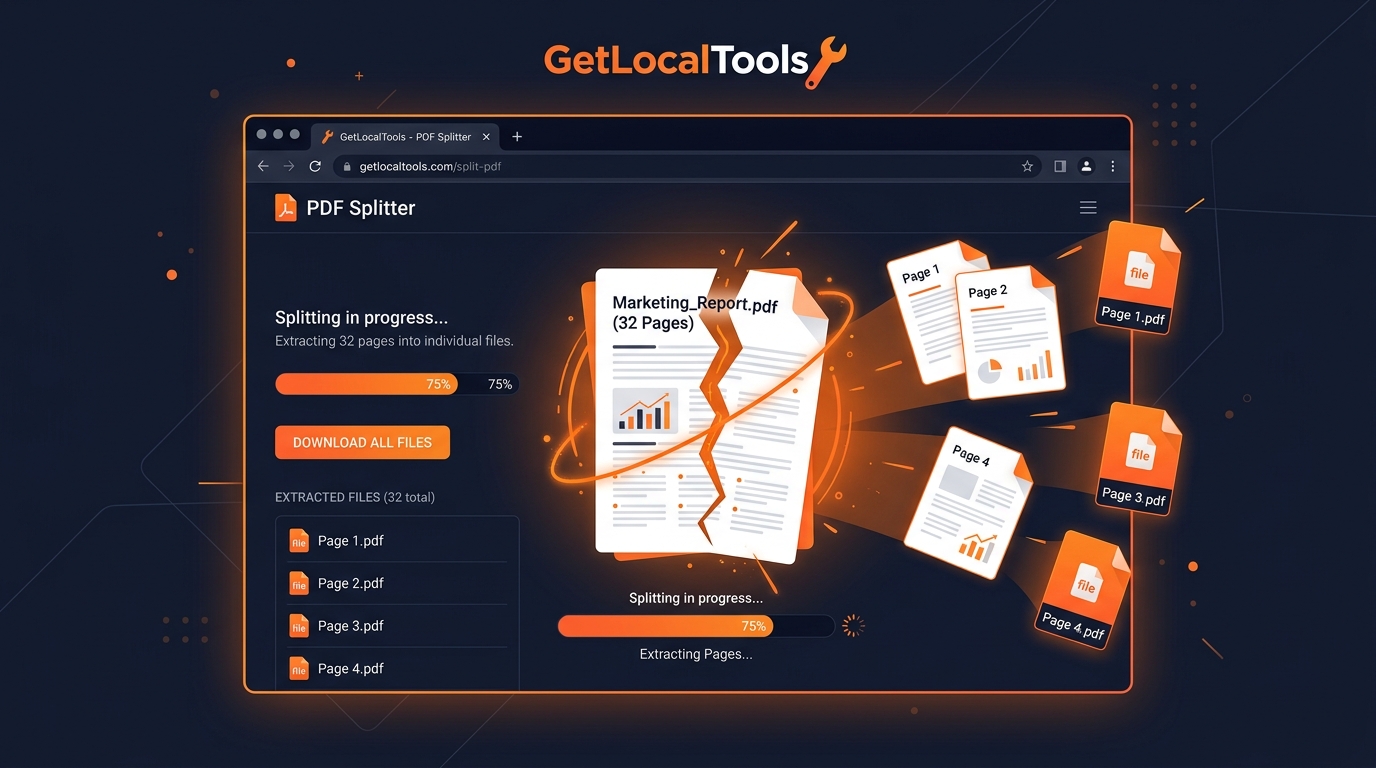
Isolate your pages locally: Extract ranges and split large PDF documents inside your browser sandbox.
The Portable Document Format (PDF) has established itself as the global standard for document exchange due to its layout consistency. Whether you are sending contracts, invoices, corporate brochures, or textbooks, PDFs ensure the layout looks exactly as intended. However, this formatting stability makes editing or rearranging pages within the document difficult.
Often, you may only need a single page or a small range from a large PDF. Sending a massive file when only a few pages are relevant wastes bandwidth, complicates processing, and can expose confidential information. The solution is to split the PDF, extracting only the pages you need.
Traditionally, online PDF splitters required uploading your documents to cloud servers. However, sending private records, financial statements, or agreements to third-party databases presents major privacy and compliance risks. GetLocalTools offers a secure, modern alternative. Using client-side WebAssembly, our PDF Splitter parses and splits your documents directly in your browser memory. Your files never leave your device, ensuring total privacy, fast speeds, and offline functionality.
Quick Answer
You can split PDF pages without losing quality by using a browser-based PDF splitter that extracts pages locally on your device. GetLocalTools processes files entirely in your browser, ensuring your PDFs remain private while preserving formatting and image quality.
1. What Does Splitting a PDF Mean?
At a technical level, splitting a PDF means creating a new, separate document containing a subset of pages from the original file. According to the ISO 32000 specification for PDF structure, pages are represented as nodes in a hierarchical Page Tree. Each page contains resources such as text font dictionaries, vector streams, raster images, and links.
A high-quality splitter does not take screenshots or rasterize the pages. Instead, it extracts the relevant page object references from the page tree, copies their content streams, and builds a new document header and catalog index.
This process must maintain layout quality:
- Vector Preservation: All original drawings, logos, forms, and paths must remain as vector shapes, ensuring they stay sharp at any zoom level.
- Text and Fonts: Embedded font subsets must be preserved so text remains searchable and editable.
- Metadata Integrity: Document settings, links, and bookmark trees should be updated to match the new file structure.
2. Why Split PDF Files?
Splitting PDFs helps streamline document workflows across various fields:
Sharing Selected Pages
When a report spans hundreds of pages but a partner only needs the executive summary, sending the entire document is inefficient. Splitting lets you send only the relevant pages, keeping communication focused.
Protecting Confidential Information
Contracts and audits often contain private sections or financial tables that should not be shared with all recipients. Splitting allows you to remove sensitive chapters before distribution.
Separating Multi-Page Invoices
Billing systems often generate single PDFs containing invoices for multiple clients. Splitting these files allows you to send individual invoices to each client, keeping financial data organized.
Extracting Single Chapters
Students and teachers often work with large textbooks. Splitting chapters into individual files makes studying more focused and reduces file sizes for mobile devices.
3. Browser-Based PDF Splitting
Most online utilities require you to upload documents to external cloud servers, which exposes your private files to data leaks or server tracking. GetLocalTools uses browser-based local compilation. WebAssembly (Wasm) allows compiled code to run inside your browser's sandbox at native CPU speeds.
Local Sandbox Security Diagram
When you use our tool, your document is loaded into your browser as a local data buffer (`Uint8Array`). The page tree structure is parsed, and the page streams are extracted locally. No data packets travel over the network, keeping your files safe on your device.
4. Step-by-Step Guide: How to Split PDFs with GetLocalTools
Splitting a PDF locally is fast and straightforward:
- Open PDF Splitter: Navigate to the PDF Splitter page on GetLocalTools.
- Load File: Drag-and-drop your target PDF file or click "Browse Files" to select a document from your device.
- Select Splitting Mode: Choose to split by page range, extract specific pages, or split every page into separate files.
- Arrange Ranges: Input the page ranges you want to extract (e.g., `1-3`, `5-8`). You can preview the page thumbnails to confirm your selection.
- Run Splitter: Click "Split PDF". The WebAssembly engine compiles the new document structure locally.
- Download Output: Click the download buttons to save the new PDF files directly to your device storage.
Local PDF Extraction Pipeline
5. Different Ways to Split PDFs
GetLocalTools provides several splitting modes to match your workflow needs:
| Splitting Mode | Description | Ideal Use Case |
|---|---|---|
| Split by Range | Extract specific sections (e.g., pages 1–5, 8–12) into a new document. | Isolating individual chapters from reports. |
| Extract Single Pages | Extract specific pages as individual, separate PDF files. | Pulling specific reference diagrams or layout guides. |
| Split Every Page | Convert every page of the document into its own individual PDF. | Separating bulk forms or invoices for distribution. |
| Odd / Even Split | Separate the document into two files: one with odd pages, one with even. | Preparing documents for double-sided manual printing. |
6. Benefits of Browser-Based PDF Splitting
Using client-side WebAssembly tools offers several advantages over cloud utilities:
- Guaranteed Data Privacy: Since files are parsed locally, your documents are protected from cloud storage breaches.
- Faster Processing: Processing occurs instantly in your browser RAM, avoiding upload times.
- Offline Functionality: You can split files anywhere, even without an active internet connection.
- No Watermarks: We do not add watermarks to your documents. The output is clean and professional.
- Unlimited Usage: There are no daily usage limits or file size restrictions. You can process as many documents as needed.
7. Common PDF Splitting Mistakes to Avoid
When splitting PDFs, look out for these common errors:
- Incorrect Page Range Selections: Double-check page numbers before splitting to ensure you do not miss content or include private pages.
- Splitting Encrypted PDFs directly: Source files with security locks must be decrypted using our PDF Unlocker first before editing page structures.
- Accidentally Overwriting Originals: Always keep a backup of the original file to avoid accidental data loss.
- Losing Bookmarks and Outlines: Splitting a document can break parent-child references in outlines. Ensure your output maintains navigation properties.
8. Best Practices for Splitting PDFs
Follow these tips to keep your document library organized and high-quality:
- Use Clear Naming Conventions: Label your split documents clearly (e.g., `invoice_Q3_pages_4_8.pdf`) to quickly identify their content.
- Audit Page Orientation: Review your document to ensure all pages are rotated correctly before splitting.
- Compress Large Files: If your output contains high-resolution scans, use our PDF Compressor to reduce file sizes for easier sharing.
- Verify Text Searchability: Check the split PDF in a reader to ensure text formatting and search capabilities remain active.
9. Browser vs. Cloud PDF Splitting
This comparison details how local browser processing compares to cloud-upload services:
| Feature | GetLocalTools (Browser) | Typical Cloud Services |
|---|---|---|
| File Upload | ❌ Not required (Runs locally) | ✅ Required (Sent to remote servers) |
| Privacy & Security | Excellent (Zero transmission footprint) | Varies (Depends on provider policies) |
| Offline Capability | ✅ Supported (Works offline) | ❌ Not supported |
| Processing Speed | Instant (Determined by your CPU) | Dependent on network upload speeds |
| Watermarks & Caps | No limits, no watermarks | Often limited on free accounts |
| Feature | Split PDFs | Merge PDFs |
|---|---|---|
| Action | Divides a single document | Combines separate documents |
| Output Result | Multiple separate PDF files | One combined PDF file |
| Page Reordering | Isolates page ranges | Rearranges pages sequentially |
| Metric | Before (Single Large PDF) | After (Split Target Files) |
|---|---|---|
| Sharing Size | Large (Slow to upload and email) | Small (Fast, optimized attachments) |
| Confidentiality | High risk (Exposes hidden pages) | Low risk (Sends only specified pages) |
| Viewing Speed | Slow (Requires loading the entire file) | Instant (Only loads the target section) |
10. Real-Life Industry Use Cases
Document splitting helps optimize workflows across various professional sectors:
- Legal: Separate long agreements into individual exhibits, agreements, and reference annexes for court submissions.
- Healthcare: Extract specific patient charts or histories to share securely while protecting other records under HIPAA guidelines.
- Education: Teachers can extract individual worksheets and homework pages from textbooks to distribute to students.
- Finance: Separate billing sheets generated in bulk, sending only the relevant statements to each client.
- HR: Isolate specific resumes, offer sheets, or tax forms from bulk application dossiers.
- Architecture: Extract specific blueprint pages or construction plans from large master sets to share with subcontractors.
11. Document Splitting Workflows
These examples show how document splitting simplifies file management:
- Example 1: Large Corporate Report ➔ Extract Summary (e.g., Pages 1–10) ➔ Send to stakeholders without sharing raw financial datasets.
- Example 2: Study Guide Compilation ➔ Split textbook into separate chapters ➔ Load individual chapters on devices for faster viewing.
- Example 3: Bulk Monthly Ledger ➔ Split PDF by Client ID ranges ➔ Send individual statements to each recipient.
12. Frequently Asked Questions
Review answers to common questions about splitting PDF files:
Open our browser PDF Splitter, upload your file, select your preferred splitting mode (range, single pages, or all pages), specify the page ranges, and click Split PDF to download the files instantly.
Yes. Simply choose the specific page number in the extraction interface, and our tool will compile it into its own separate PDF document.
No, local splitting reorganizes the internal object references without re-compressing images, ensuring the text and image quality remain unchanged.
Yes, all document parsing runs client-side inside your browser sandbox. The file never leaves your device, preventing cloud data leaks.
Yes, scanned PDF pages are isolated into separate documents while maintaining their original resolution and layout.
You must unlock the encrypted document using our Unlock tool first. The page catalog must be decrypted before page elements can be parsed.
Yes, once loaded, the page functions completely offline. All processing runs locally using WebAssembly.
Yes, our tool works directly in Safari, Chrome, and Firefox on iOS and Android devices without requiring app installations.
There are no server limits. The maximum file size you can process depends entirely on your device's RAM capacity.
Yes, all our tools are 100% free with no registration requirements and no watermarks.
Our tool currently supports splitting by page range. To reduce file sizes directly, use our local PDF Compressor tool.
It is a tool that processes documents directly on your device using WebAssembly, rather than uploading files to a cloud server.
If a link points to a page outside the extracted range, it will no longer function in the new file. Internal links within the range remain active.
Yes, you can drag your document directly into the drop zone to begin processing.
No. We do not have database servers. All files are cleared from your browser's temporary memory once you close the tab.
Yes, the web interface is cross-platform and functions on macOS, Windows, Linux, and ChromeOS.
Yes, because the output file contains fewer pages and resources, the resulting file size is smaller than the original.
Yes. Choosing the odd/even mode extracts pages into two separate files, which is useful for double-sided manual printing.
Yes. Because files never leave your device, this method automatically complies with data laws like GDPR, HIPAA, and CCPA.
Large files with high-resolution scans or complex layers require more processing. Because the tool runs locally, execution speed depends on your device's CPU and RAM.
15. Conclusion
Splitting a PDF is a highly effective way to manage and share documents. However, convenience should not come at the cost of document privacy. Uploading confidential business reports or personal files to cloud servers presents significant security risks.
GetLocalTools offers a secure, free solution. Our client-side PDF Splitter processes your documents directly inside your browser memory using WebAssembly. This delivers fast, private processing—keeping your files safely on your device.
16. Pinterest Pin Assets
Pin ideas for your channels:
- Pins Titles:
- How to Split PDF Pages Without Losing Quality
- Extract PDF Pages Locally in Your Browser
- Stop Uploading PDFs! Split Files Offline Securely
- Best Way to Split Large PDF Files for Free
- How to Extract Specific Pages from a PDF
- Pins Descriptions:
- Need to split PDF files? Learn how to extract specific pages securely inside your browser memory using WebAssembly. Works 100% offline!
- Tired of uploading tax forms or invoices to cloud servers? Read our step-by-step guide to split PDFs safely without server uploads.
- Keep your files private! Discover how our free browser tool extracts specific PDF pages instantly with zero registration.
- A complete guide to PDF splitting: extract page ranges, split odd/even sheets, and organize chapters locally.
- Learn the differences between local and cloud-based PDF splitters and why local browser-based sandboxing is the safest choice.
- Pinterest Image Text Overlays:
- "Split PDF Online (100% Private)"
- "Extract PDFs Without Cloud Uploads"
- "Safe, Local PDF Splitter"
- "Isolate PDF Pages Instantly"
- "Offline Browser PDF Page Extractor"
- Recommended Board:
Tech Tips & Office Hacks - Suggested Hashtags:
#PDFSplitter #OfficeProductivity #DataSecurity #PrivacyFirst #DocumentWorkflow #RemoteWorkHacks
17. Social Media Sharing Posts
Still uploading confidential reports, tax statements, or contracts to external cloud servers just to split pages? 🔒 Your business documents deserve privacy.
Discover how client-side WebAssembly allows you to split and extract PDF pages locally inside your browser memory. 100% secure, offline-compatible, and CCPA/GDPR compliant.
Read the guide: https://www.getlocaltools.com/insights/how-to-split-pdf-pages-without-losing-quality.html
#DocumentWorkflow #DataCompliance #PrivacyFirst #GetLocalTools #Productivity
Need to share only a few pages of a massive PDF report? 📁 Learn how to split PDF files online securely without cloud uploads. Our local, browser-based tool keeps your formatting and quality sharp, for free.
Read our step-by-step guide: https://www.getlocaltools.com/insights/how-to-split-pdf-pages-without-losing-quality.html
Stop uploading sensitive PDFs to cloud servers just to split pages. 🔒 Extract page ranges locally inside your browser sandbox. 100% secure & offline: https://www.getlocaltools.com/insights/how-to-split-pdf-pages-without-losing-quality.html #Privacy #OfficeHacks
Title: How to Split PDF Documents Locally in Your Browser Memory (No Uploads)
When splitting pages, uploading private legal exhibits, financial ledger sheets, or invoices to third-party databases exposes you to database breaches. You can parse and rebuild PDF Page Trees locally using WebAssembly inside your browser memory. This keeps files safely on your device, works completely offline, and prevents quality degradation. Here is a technical guide on how it works and how to avoid coordinate errors.