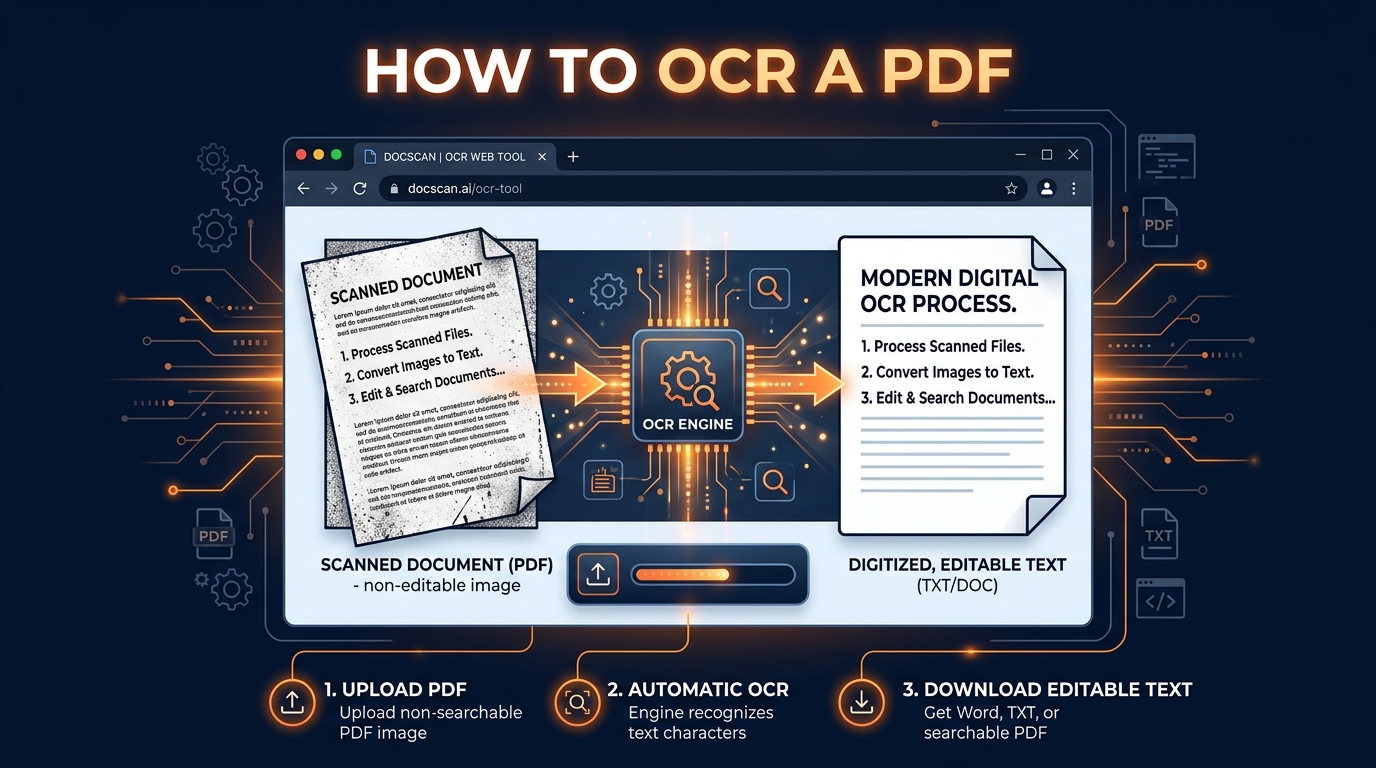
Have you ever opened a scanned PDF contract, research paper, or historic archive document, tried to highlight text or search for a specific word using Ctrl + F (or Cmd + F), only to find that nothing happens? Or perhaps you needed to copy a single paragraph from a multi-page scanned invoice into a spreadsheet, but realized the entire PDF is just a sequence of non-selectable images?
This common frustration occurs because millions of PDF files created by physical desktop scanners, smartphone cameras, office copiers, and legacy archiving systems are simply collection wrappers around raster image pixels rather than structured digital text fonts. To your computer's operating system, a scanned PDF is no different from a photograph taken of a printed page.
This is where Optical Character Recognition (OCR) comes in. OCR technology acts as a bridge between the physical and digital document worlds. By analyzing the shapes of dark and light pixel patterns across scanned page images, OCR identifies letters, numbers, punctuation marks, and layout paragraphs, transcribing them into live, editable, and searchable text streams.
In this definitive 2026 guide, you will learn everything about how to OCR a PDF—from the underlying computer vision algorithms to step-by-step conversion techniques, scan optimization strategies, language models, and how to execute 100% private, browser-based OCR without uploading your confidential files to remote third-party servers.
1. What is OCR? (Optical Character Recognition Deep Dive)
Optical Character Recognition (OCR) is an advanced branch of computer vision and pattern recognition software designed to translate visual images of printed, handwritten, or typed text into machine-encoded text format. Whether dealing with an old scanned book, a photographed receipt, or a multi-page legal agreement, OCR transforms static visual pixels into actionable data.
How Modern OCR Engines Work
Understanding the inner mechanics of OCR helps users achieve the highest possible recognition accuracy. Modern OCR engines execute a sophisticated 7-stage processing pipeline:
- Image Binarization & Adaptive Thresholding: The engine converts colorful or grayscale scanned images into a high-contrast binary state (pure black pixels for text characters and pure white pixels for background paper). Adaptive thresholding accounts for uneven shadows, yellowed paper, or faded ink.
- Noise Reduction & Despeckling: Digital artifacts, paper dust, bleed-through ink spots, and scan specks are filtered out to prevent cluttering character detection.
- Page Dewarping & Deskewing: If a paper page was placed crookedly on a flatbed scanner or photographed at an angle with a smartphone, deskewing algorithms calculate the baseline angle of text lines and rotate the image back to exact horizontal alignment.
- Layout Analysis & Region Segmentation: The page layout is analyzed to distinguish between text blocks, headers, footers, multi-column articles, inline tables, and embedded graphics. This prevents column text from running together horizontally across the page.
- Character & Word Segmentation: Text lines are split into individual word blocks and isolated character bounding boxes.
- Feature Extraction & Neural Network Pattern Matching: Deep learning neural network models evaluate character geometry—analyzing loops, strokes, angles, and intersections—to match visual character bounding boxes against trained font glyph models.
- Dictionary Lookup & Language Modeling: Raw character predictions are refined using contextual language dictionaries and n-gram probability models (e.g. recognizing that "thrn" is likely "then" or "them" in English context).
A native digital PDF created in Microsoft Word or Adobe InDesign contains embedded vector font glyphs and exact character coordinate locations. In contrast, an image-based scanned PDF contains zero font glyphs; it contains only raw bitmap pixel arrays. OCR creates an invisible vector text overlay precisely synchronized over the underlying raster image.
The Historical Evolution of OCR: From Kurzweil to Browser WebAssembly
OCR technology has undergone a massive transformation over the past 50 years:
- 1970s–1980s (First Generation Hardware): Early OCR required massive specialized flatbed scanners and dedicated hardware units designed primarily to assist visually impaired individuals by reading text aloud (pioneered by Ray Kurzweil).
- 1990s–2000s (Desktop Software Era): Desktop applications like ABBYY FineReader and Adobe Acrobat Professional brought software OCR to personal computers, though installation was heavy and licenses were expensive.
- 2010s (Cloud OCR API Era): Cloud platforms introduced REST APIs for OCR. However, this forced businesses and users to upload sensitive corporate files across the public internet to central cloud servers, raising massive privacy and data breach concerns.
- 2020s & Beyond (Browser WebAssembly Revolution): The arrival of WebAssembly (WASM) enabled compiled C++ OCR engines (like Google's Tesseract) to run at near-native speeds directly inside web browsers. Tools like GetLocalTools OCR PDF leverage browser WebAssembly to deliver enterprise OCR without transmitting a single byte of data to external servers.
2. Why Some PDFs Cannot Be Edited or Searched
Many users wonder why some PDF files allow seamless highlight-and-copy editing while others behave like static images. To understand why, we must inspect the internal document architecture of PDFs.
The Anatomy of a PDF Container
A PDF (Portable Document Format) is essentially a container file. What goes inside that container determines whether the document is interactive or static:
| PDF Document Category | Internal Content Type | Text Selectable? | Ctrl+F Searchable? | Requires OCR? |
|---|---|---|---|---|
| Native Digital PDF | Embedded vector text & font glyphs | ✅ Yes (Instant) | ✅ Yes (Instant) | ❌ No |
| Scanned Paper PDF | JPEG/PNG raster pixel image streams | ❌ No | ❌ No | ✅ Yes (Mandatory) |
| Photographed Document PDF | Camera snapshot bitmap arrays | ❌ No | ❌ No | ✅ Yes (Mandatory) |
| Screenshot or Fax PDF | Compressed bitmap raster grid | ❌ No | ❌ No | ✅ Yes (Mandatory) |
| Searchable OCR PDF | Raster image + Invisible OCR text layer | ✅ Yes (Overlaid) | ✅ Yes (Indexed) | Completed |
8 Common Scenarios Where PDFs Lack Selectable Text
- Office Scanner & MFP Outputs: Document scanners in offices convert paper documents directly into PDF wrappers containing raw TIFF or JPEG images.
- Mobile Scanner Apps: Photos taken with smartphone scanning apps save image files as PDF documents without embedding text layers.
- Archival Digitization & Old Books: Historical libraries and public archives digitize fragile paper manuscripts into image-only PDFs.
- Legal Case Filing Collections: Courts and law firms scan paper evidence, signed affidavits, and historical filings into image PDF bundles.
- Accounting Receipts & Invoices: Vendor receipts and paper bills scanned into accounting software.
- Flattened Export PDFs: Design programs or security software exporting graphic pages without preserving underlying vector text fonts.
- Fax Transmissions: Analog or digital faxes received as PDF attachments.
- Form Submissions & Signed Contracts: Paper agreements signed with physical pen and scanned back into PDF format.
3. The Comprehensive Benefits of Converting Scanned PDFs with OCR
Converting static, scanned PDF documents into editable text unlocking tremendous efficiency and compliance benefits across modern workflows:
1. Direct Text Editing & Copy-Pasting
Instead of manually retyping multi-page contracts, legal briefs, or textbook chapters, OCR extracts clean text directly into your clipboard, allowing immediate pasting into Word, Google Docs, Slack, or email drafts.
2. Full-Text Searchability & Desktop Indexing
Once OCR is applied, documents become fully searchable. Windows Search, macOS Spotlight, Google Drive, and enterprise document management systems can instantly index every word within the document, letting you locate needle-in-a-haystack terms in seconds.
3. Accessibility Compliance (WCAG 2.2 & ADA)
Screen readers used by visually impaired individuals cannot read pixel images. OCR adds structured text elements, headers, and reading order, rendering scanned documents compliant with web accessibility guidelines.
4. Automated Data Extraction & Database Integration
OCR allows organizations to automatically feed unstructured scanned invoice data, receipts, and intake forms directly into ERP, CRM, and accounting software (such as QuickBooks, SAP, or Salesforce).
5. Multi-Language Machine Translation
Foreign language scans cannot be translated by software while locked inside image formats. Running OCR extracts the source text, enabling automated translation into dozens of global languages.
6. Regulatory Archiving & Legal Discovery Compliance
Modern compliance frameworks (such as e-Discovery in litigation) mandate that all archived files must be text-searchable. OCR converts static paper archives into compliant electronic files.
7. Storage Optimization & File Size Reduction
If you choose to store only the extracted plain text or Markdown version of a 50 MB scanned image PDF, the resulting file size drops to less than 50 KB—a 99.9% storage reduction.
4. Browser OCR vs. Traditional Cloud OCR (Security & Performance)
When selecting an OCR tool, the fundamental architecture determines document privacy, speed, and reliability. Modern WebAssembly browser OCR represents a paradigm shift away from traditional cloud server converters.
| Feature / Capability | GetLocalTools Browser OCR | Traditional Cloud OCR Services |
|---|---|---|
| File Upload Required? | ❌ No Uploads (100% Local) | ✅ Yes (Transmitted to cloud) |
| Data Privacy Guarantee | 🔒 100% Private (Stays in local RAM) | ⚠️ Risk (Saved on 3rd party servers) |
| Processing Engine | Client-Side WebAssembly (Tesseract.js) | Remote Cloud Server Clusters |
| Account / Registration | ❌ None required | Often required for full access |
| Conversion Speed | ⚡ Instant (No upload latency) | 🐢 Dependent on upload bandwidth |
| Page & Size Limits | ♾️ Unlimited (Bound by local CPU) | Strict free-tier daily quotas |
| Offline Capability | ✅ Works offline once cached | ❌ Requires active internet connection |
Why Client-Side WebAssembly Execution Is Essential for Confidential Documents
When you upload a scanned contract, bank statement, tax form, or medical record to a cloud OCR website, your file travels across public internet routers to an unknown remote server. Many free cloud conversion services monetize by storing user files, logging metadata, or selling datasets for AI training. For legal, financial, and healthcare professionals, this creates severe compliance violations under GDPR, HIPAA, and corporate NDAs.
GetLocalTools eliminates this privacy risk entirely. The entire OCR engine is delivered as a WebAssembly binary that executes inside your browser sandbox. Your PDF data is processed locally in RAM, never touches a network interface, and disappears completely when you close the tab.
5. How to OCR a PDF Using GetLocalTools (Step-by-Step Guide)
Converting a scanned PDF into editable text with GetLocalTools is fast, intuitive, and completely secure. Follow this 6-step walkthrough:
Step 1: Open the GetLocalTools OCR PDF Tool
Navigate to the free GetLocalTools OCR PDF Tool in any modern web browser (Chrome, Firefox, Edge, Safari, Opera, or Brave). No browser extension installation or user account signup is required.
Step 2: Upload Your Scanned PDF Document
Drag and drop your scanned PDF directly into the secure upload drop zone, or click Browse Files to select a document from your computer, phone, or tablet. GetLocalTools will instantly load the document and display interactive page thumbnails.
Step 3: Select Document Language & Quality Mode
Choose your document language from the settings panel (English, Hindi, Spanish, French, German, Italian, Portuguese, Japanese, or Chinese Simplified). Next, select an OCR Quality Mode:
- Fast Mode: Uses a 1.5x render scale multiplier. Recommended for clean, high-resolution digital scans where speed is top priority.
- Balanced Mode (Default): Uses a 2.0x render scale. Delivers optimal recognition accuracy and processing speed for standard office documents.
- High Accuracy Mode: Uses a 2.5x render scale with automated contrast enhancement filters. Recommended for low-resolution, aged, or faded paper documents.
Step 4: Configure Page Ranges & Smart Cleanup Rules
Choose which pages to recognize: process the Entire PDF, Current Page Only, Odd Pages Only, Even Pages Only, or enter a Custom Page Range (e.g. 1, 3, 5-8). Enable the Smart Rule-Based Cleaner toggle to automatically repair hyphenated word line breaks and paragraph spacing.
Step 5: Click Start OCR Extraction & Monitor Live Progress
Click Start OCR Extraction. Watch real-time progress indicators showing current page processing, percent completion, remaining pages, and estimated time remaining. If you need to stop, click Cancel OCR at any time to preserve text extracted up to that point.
Step 6: Review, Edit & Export Text
Once recognition completes, review your text in the interactive results panel. Use the Search & Replace bar to edit terms, toggle between Cleaned Text and Raw Text, and click your preferred export format: Download .TXT, Download .MD (Markdown), Download .DOCX (Word), or Copy to Clipboard.
6. Pro Tips for Achieving 99%+ OCR Recognition Accuracy
While modern WebAssembly neural networks are exceptionally accurate, OCR performance is fundamentally bound by input image quality. Following these professional scan preparation guidelines will boost recognition accuracy close to 100%:
1. Scan at 300 DPI Resolution
Resolution is the single most critical factor in character recognition. Scanning at 300 DPI (dots per inch) provides sufficient pixel density for the OCR engine to distinguish small serifs, dots on "i" characters, and punctuation marks. Scanning below 150 DPI produces pixelated character edges, while scanning above 600 DPI dramatically increases file size and processing time without meaningful accuracy gains.
2. Ensure Precise Horizontal Alignment (Deskewing)
If a paper document is placed slanted on a flatbed scanner or photographed at a tilt, character recognition accuracy drops. Keeping paper pages straight and horizontal helps layout segmentation algorithms separate lines and paragraphs accurately.
3. Maximize Visual Paper Contrast
Dark black text printed against a clean white background yields optimal OCR performance. If scanning colored paper or documents with background tint, select High Accuracy Mode in GetLocalTools to automatically binarize and boost contrast.
4. Eliminate Smartphone Camera Shadows & Glare
When taking photos of documents with a smartphone camera, avoid casting overhead hand or phone shadows across the paper. Ensure bright, indirect natural lighting to prevent glare spots on glossy paper.
5. Select the Exact Document Language
OCR engines utilize language-specific vocabulary dictionaries and character frequency statistics to disambiguate character shapes (such as distinguishing between uppercase "O" and number "0"). Always select the exact language of your source text prior to processing.
7. Supported Documents & Use Cases
GetLocalTools OCR PDF processes a vast array of document types across professional domains:
- Legal & Corporate Contracts: Digitizing scanned agreements, court filings, signed deeds, NDAs, and corporate resolutions into searchable archives.
- Financial Statements & Invoices: Extracting item descriptions, totals, tax amounts, and dates from paper vendor bills, receipts, and bank statements.
- Academic Papers & Books: Digitizing library books, historical manuscripts, journal articles, and lecture notes into editable research drafts.
- Medical Charts & Records: Converting paper patient intake forms, physician notes, and laboratory results into electronic healthcare record (EHR) text.
- Human Resources Resumes: Extracting text from paper resumes, applications, and certifications for HR talent management databases.
- Government Public Records: Digitize municipal archives, census documents, meeting minutes, and historic deeds into public digital libraries.
8. Technical Limitations of OCR & How to Overcome Them
To set accurate expectations, users should understand current technical boundaries of optical character recognition:
| OCR Technical Challenge | Root Cause | Recommended Remediation Strategy |
|---|---|---|
| Cursive Handwriting | Non-standard continuous stroke geometry | OCR is designed for printed fonts; transcribe cursive manually. |
| Low Resolution (<150 DPI) | Pixelated character boundaries | Use High Accuracy mode or rescan source document at 300 DPI. |
| Curved Book Spine Shadow | Distorted line curvature and dark shadows | Press book flat against scanner glass or flatten image before OCR. |
| Heavy Watermarks / Backgrounds | Pixel clutter overlapping text strokes | Enable Smart Cleanup filter to strip noise and normalize text. |
| Complex Nested Table Layouts | Unclear grid lines or cell borders | Export extracted text to Markdown/DOCX and format table borders. |
9. Multi-Language OCR Support & Language Selection Architecture
Language selection is not merely a translation option—it changes the underlying neural network weight matrices and dictionary probability models used by the OCR engine. For instance, in German OCR, the engine actively searches for umlaut characters (ä, ö, ü) and sharp S (ß), whereas in Spanish OCR, it prioritizes accented vowels (á, é, í, ó, ú) and the inverted question mark (¿).
GetLocalTools OCR PDF v2.0 supports 9 primary global languages out-of-the-box:
- English (eng): Default model trained on standard Latin typography and technical vocabularies.
- Hindi (hin): Full Devanagari script support for Indian public records, documents, and news.
- Spanish (spa): Includes accented vowels, tildes, and regional punctuation.
- French (fra): Supports cedillas (ç), circumflex accents, and ligatures.
- German (deu): Optimized for long compound nouns, umlauts, and Fraktur/modern fonts.
- Italian (ita): Supports grave and acute accents across Italian business documents.
- Portuguese (por): Optimized for Brazilian and European Portuguese accents and tildes.
- Japanese (jpn): Multi-script recognition for Kanji, Hiragana, and Katakana characters.
- Chinese Simplified (chi_sim): Optimized for simplified Chinese character sets across business filings.
10. Privacy-First Local OCR Security
Data security is at the core of GetLocalTools architecture. Traditional web applications send your uploaded files over HTTP POST requests to cloud servers hosted in distant data centers. Even if a website promises to "delete files after 1 hour," your confidential information is still stored in cloud memory, temp folders, and server logs.
🔒 GetLocalTools 100% Private Local Execution Architecture
Zero Bytes Sent to Server • Zero Cloud Storage • Zero Network Tracking
By compiling the Tesseract OCR engine directly into WebAssembly (WASM), GetLocalTools executes character recognition entirely within your web browser's isolated JavaScript sandbox. Network activity monitoring (via browser Developer Tools) proves that zero document bytes are transmitted anywhere, making GetLocalTools compliant with the strictest legal, healthcare, and financial privacy standards.
11. OCR vs. PDF to Word (Choosing the Right Conversion Tool)
Users frequently wonder whether they should use an OCR PDF Tool or a PDF to Word Converter. Choosing the correct tool depends entirely on your source PDF file type:
| Comparison Criteria | OCR PDF Tool | PDF to Word Converter |
|---|---|---|
| Primary Input Type | Scanned Image PDFs, Photos, Faxes | Native Digital Vector PDFs |
| Target Output | Extracted Text (TXT, MD, DOCX) | Formatted Word Document (DOCX) |
| Underlying Technology | Visual Computer Vision & Neural Networks | Vector Coordinate & Font Mapping |
| Best For... | Extracting text from locked paper scans | Preserving complex layouts of digital PDFs |
| Recommended Workflow | Run OCR PDF first if document is a scan | Use PDF to Word directly for native digital files |
12. Real-World Use Cases & Case Studies
Case Study 1: Law Firm Digitizing 1,000-Page Evidence Archives
A paralegal needed to review a 1,000-page scanned paper archive from a historical lawsuit. Retyping the evidence manually would take over 120 hours. Using GetLocalTools OCR PDF, the law firm converted the entire paper bundle into searchable text in under 15 minutes locally on an office laptop, maintaining strict client NDA confidentiality.
Case Study 2: University Researcher Indexing Historic Manuscripts
A history researcher studying 19th-century trade records obtained scanned PDF books from a university library. By processing the PDFs through GetLocalTools with German language OCR, the researcher extracted clean text into Markdown files, allowing automated indexing and search analysis.
Case Study 3: Accounting Firm Processing Expense Receipts
An accounting team received hundreds of photographed client receipts and paper vendor invoices during tax season. Running GetLocalTools OCR PDF extracted invoice numbers, dates, and currency totals directly into spreadsheets, cutting manual data entry time by 85%.
13. End-to-End Workflow Process Diagram
Here is the full lifecycle of a document processed through GetLocalTools OCR PDF:
14. Related Local PDF & Image Tools
Explore our complete suite of 100% private, browser-based document utilities:
OCR PDF
Convert scanned PDFs into editable text locally in browser.
PDF to Word
Convert digital PDFs into editable Word DOCX files.
Image to Text
Extract text from JPG, PNG, or WebP images using OCR.
PDF to Text
Extract text from digital vector PDFs instantly.
PDF Image Extractor
Extract all embedded images from PDF files.
PDF Compressor
Reduce PDF file size locally without quality loss.
Merge PDF
Combine multiple PDF files into one document.
Split PDF
Extract page ranges and split PDFs into files.
PDF Editor
Edit PDF text, add signatures, links, and whiteouts.
15. Related Insights & Guides
Read expert tutorials and guides from our document authority cluster:
Best Free PDF Tools Guide
Discover top private, browser-based utilities for PDF tasks.
Convert PDF to Word Guide
How to convert PDF documents to Word without formatting loss.
Compress PDF Guide
Optimize PDF file size while preserving resolution.
Merge PDF Guide
Combine multiple PDF files securely without uploading.
Split PDF Guide
Extract specific page ranges from large documents.
Browser vs Cloud Tools
Why client-side web tools protect document privacy.
16. Frequently Asked Questions (25 FAQs)
1. What is OCR PDF?
OCR PDF is the process of scanning image-based PDF pages or photographs and extracting machine-readable, editable plain text.
2. Why can't I copy text from a scanned PDF?
Scanned PDFs contain pictures of pages rather than vector text fonts. OCR is required to transcribe image pixels into selectable text characters.
3. How does browser-based local OCR work?
Browser OCR runs a WebAssembly port of the Tesseract engine directly inside your browser's RAM sandbox, recognizing text locally on your device.
4. Is my PDF uploaded to any server during local OCR?
No. All rendering and text recognition occur 100% locally inside your web browser. No data ever leaves your computer.
5. What languages does GetLocalTools OCR support?
GetLocalTools supports 9 languages: English, Hindi, Spanish, French, German, Italian, Portuguese, Japanese, and Chinese Simplified.
6. What is the difference between OCR PDF and PDF to Word?
OCR PDF extracts text from image scans using visual pattern recognition. PDF to Word converts existing digital vector PDFs into Word DOCX files.
7. Can OCR read handwritten notes or signatures?
OCR engines are optimized for printed typography. While neat block printing yields partial text, cursive handwriting accuracy is limited.
8. What is the best scan resolution for high OCR accuracy?
A scanning resolution of 300 DPI (dots per inch) is recommended. It provides sufficient character detail without excessive file size.
9. How do OCR Quality Modes work?
Fast mode prioritizes speed for clean scans, Balanced mode optimizes speed and recognition, and High Accuracy mode increases resolution and contrast for low-quality documents.
10. Can I process specific page ranges instead of the entire document?
Yes. You can process all pages, current page, odd pages, even pages, or enter custom page ranges like 1, 3, 5-8.
11. What is Smart OCR Cleanup?
Smart OCR Cleanup is a non-AI rule-based post-processor that fixes broken line breaks, merges split paragraphs, removes duplicate spaces, and normalizes quotes.
12. Can I export extracted OCR text into Markdown or Word?
Yes. You can export extracted OCR text into plain TXT (.txt), Markdown (.md), Word (.docx), copy directly to clipboard, or send to printer.
13. How does local browser OCR ensure GDPR and HIPAA compliance?
Because WebAssembly OCR executes entirely inside your local browser memory sandbox without data transmission, sensitive legal, medical, and financial records never cross network boundaries.
14. Is GetLocalTools OCR PDF completely free?
Yes. GetLocalTools OCR PDF is 100% free with no registration, no subscription, no file size caps, and no watermarks.
15. Can I make a PDF searchable using OCR?
Yes. Running OCR extracts text layers from scanned PDF images, enabling Ctrl+F searchability and desktop search indexing.
16. How do I fix low OCR accuracy on blurry documents?
Select High Accuracy mode, ensure the document is aligned straight, increase paper contrast, and match the exact document language.
17. Can OCR process scanned receipts and invoices?
Yes. OCR accurately extracts numbers, item descriptions, and totals from scanned receipts, invoices, and bank statements.
18. What file size limit applies to local OCR PDF processing?
GetLocalTools imposes no artificial size limits. Maximum processing capacity depends solely on your computer's RAM and CPU capabilities.
19. Does local browser OCR work on mobile devices?
Yes. Modern mobile web browsers on Android and iOS support WebAssembly, enabling secure local OCR on smartphones and tablets.
20. Can I cancel an OCR job if I selected the wrong document?
Yes. Clicking Cancel OCR immediately halts WebAssembly processing while retaining text extracted from completed pages.
21. Why is local WebAssembly OCR faster than cloud OCR?
Local WebAssembly eliminates file upload latency and server queue delays. Processing begins instantly on your CPU.
22. How does OCR handle multi-column newspaper layouts?
Tesseract WebAssembly analyzes visual whitespace boundaries to group text into left-to-right, top-to-bottom reading order across multiple columns.
23. Can I OCR password-protected PDF files?
Encrypted PDFs must be unlocked before OCR can render the page images. You can use GetLocalTools Unlock PDF first to remove passwords.
24. Does OCR keep tables formatted cleanly?
OCR extracts the text inside table cells. Applying Smart Cleanup normalizes spacing and alignment for copy-pasting into spreadsheets.
25. Where can I access the free GetLocalTools OCR PDF tool?
You can access the free tool anytime at https://www.getlocaltools.com/tools/ocr-pdf.html with no registration required.
17. Conclusion & Next Steps
Converting scanned image PDFs into live, editable text no longer requires sacrificing document privacy or paying expensive monthly software subscriptions. Optical Character Recognition has evolved into an accessible, high-speed technology that runs entirely inside your modern web browser via WebAssembly.
By leveraging GetLocalTools OCR PDF, you can instantly transcribe contracts, receipts, research papers, and archived books while guaranteeing that your confidential files never leave your computer's local memory sandbox.
Social Media & Pinterest Sharing Assets
Suggested Pinterest Board: PDF Tools / Productivity Tips / Free Online Tools
Pinterest Titles:
- How to Convert Scanned PDF to Editable Text Free
- Easy Way to OCR a PDF Document in Browser
- Extract Text from Scanned PDF (100% Private)
- Free Browser Tool to Make Scanned PDFs Searchable
- Step-by-Step Guide: How to OCR a PDF Online
Social Media Share Summaries:
LinkedIn / Business: Stop retyping scanned PDFs manually! Our complete guide shows how to convert scanned paper documents and image PDFs into editable text 100% locally in your browser with zero file uploads. #PDF #OCR #Privacy #Productivity
X (Twitter): Need to copy text from a scanned PDF? Check out our privacy-first guide to browser WebAssembly OCR! No uploads required. https://www.getlocaltools.com/insights/how-to-ocr-a-pdf-convert-scanned-pdf-to-editable-text.html